Use add-ons and gallery
Add-ons and gallery posts help clients choose more confidently without cluttering the core service list.
Decide whether you need an add-on, service, or gallery post
- Use an add-on when the client is enhancing a base service.
- Create a separate service when the booking should stand on its own.
- Use Gallery when you want to show visual work that supports a booking decision.
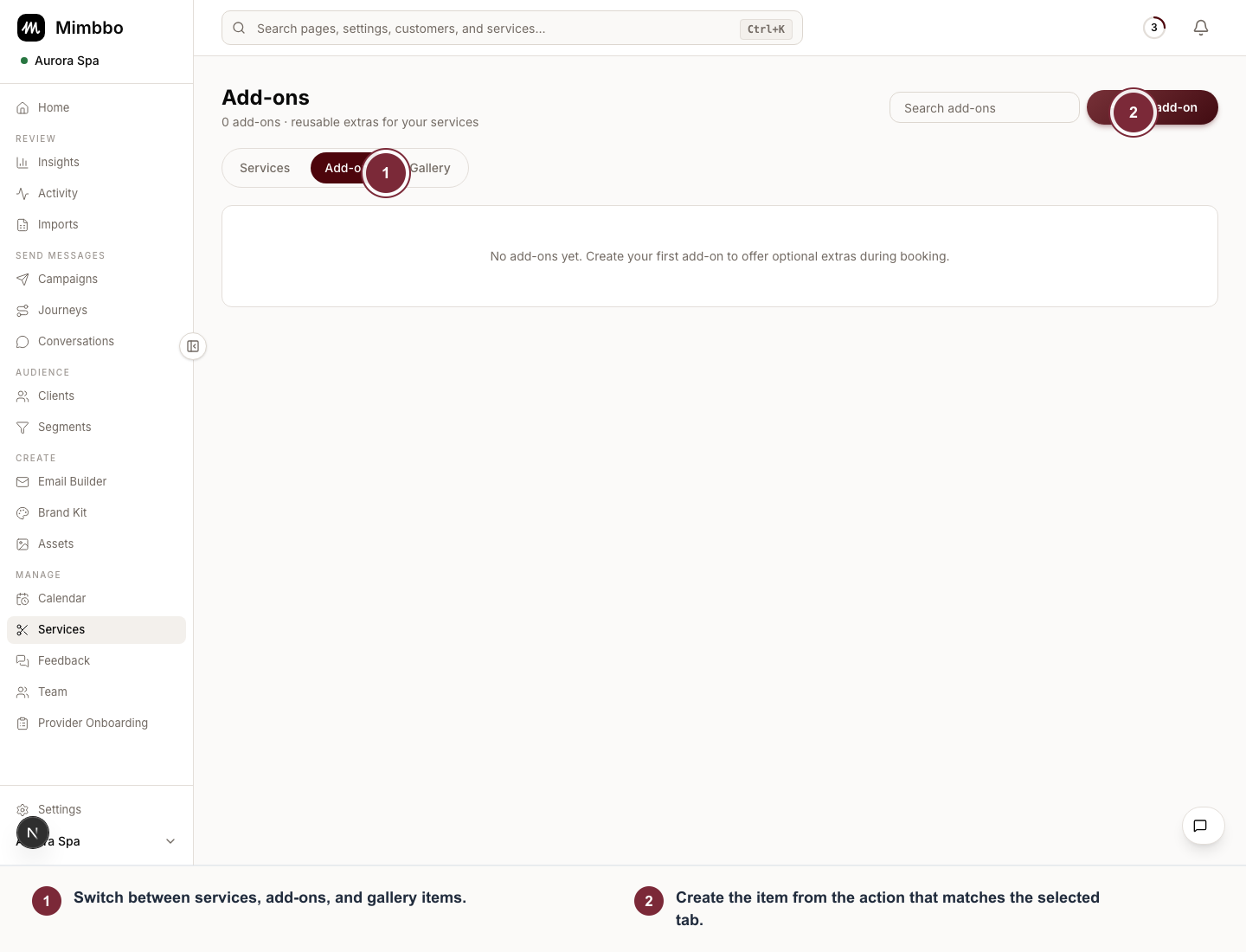
Choose the correct Services tab before creating an item so extras and gallery photos appear in the right client flow.
- Switch between services, add-ons, and gallery items.
- Create the item from the action that matches the selected tab.
Create or update an add-on
- Open Services and go to Add-ons.
- Create a new add-on or select one to edit.
- Enter the add-on name, duration, price, and any note you want to include.
- Choose whether it should apply to all services or only selected services.
- Add media if it helps explain the extra.
- Save the add-on.
Add-ons stay reusable. Restrict them only when the extra should appear with specific services.
Create a gallery post
- Open Services and go to Gallery.
- Create a new gallery post.
- Upload one strong image or a small image set.
- Add a short caption.
- Link the post to a service if that connection helps the client understand what they are booking.
- Save the gallery post.
What clients see
- Add-ons appear only with the services they apply to.
- Linked gallery posts stay in Gallery and can enrich service booking previews.
- Provider gallery posts are preferred for the public booking landing photo strip.
- Service media can still appear when gallery content is not available.
Reusing add-ons is usually better than creating near-duplicates across the menu.
Last updated on