Claim a migrated business
The migration claim flow is for providers whose Mimbbo business was created from migrated data. It lets the provider review important details before entering the normal Mimbbo portal.
Start from the invite
- Open the Mimbbo invitation link.
- Confirm the invite is for the right email and business.
- Accept the invite.
- Continue to the migration claim page.
Standard team invites stay in the normal invite flow. Migration invites route to the claim flow after acceptance.
Review imported data
Mimbbo can show counts for imported services, gallery images, clients, and appointments. Use these counts as a quick confirmation that the migrated business is the one you expected.
Warnings can appear when Mimbbo needs you to review something before activation.
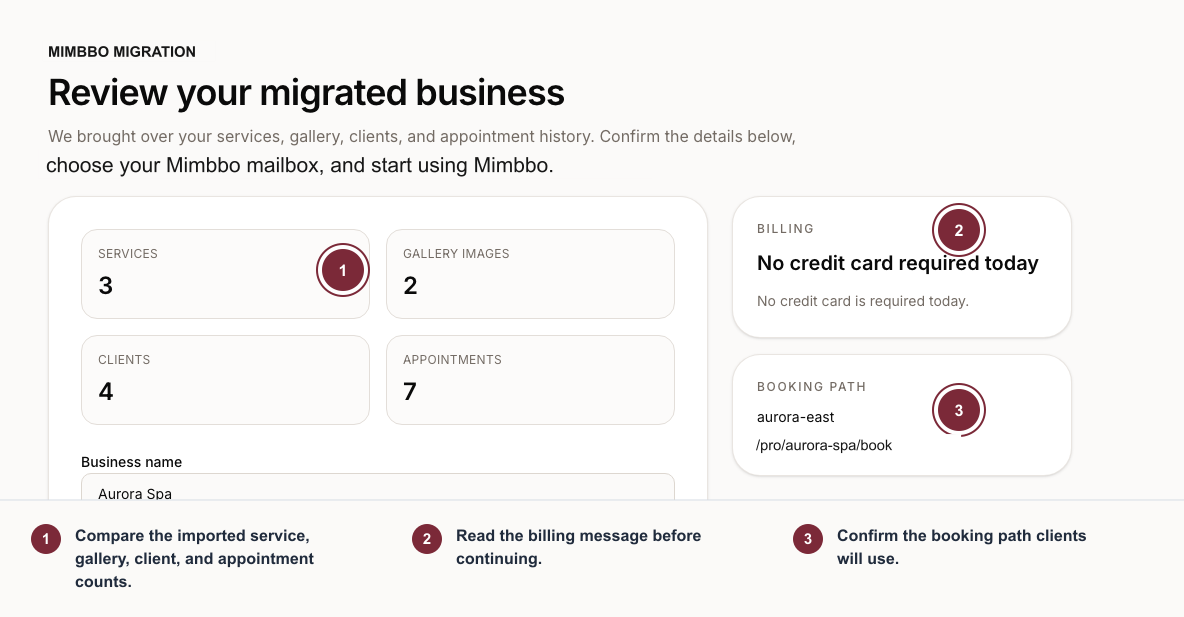
Use the claim review to confirm what moved, the booking path clients will use, and whether billing needs attention today.
- Compare the imported service, gallery, client, and appointment counts.
- Read the billing message before continuing.
- Confirm the booking path clients will use.
Confirm business details
Review and update:
- Business name.
- Business address or city.
- Business email.
- Phone number.
- Website.
- Booking path.
The business address or city is required so Mimbbo has a real location context for the provider.
Choose booking and mailbox details
The booking path controls the live booking URL Mimbbo reserves for the business. Use lowercase letters, numbers, and hyphens.
The Mimbbo mailbox controls the provider’s Mimbbo-managed email address. Check availability before submitting. If the chosen mailbox is not available, use one of Mimbbo’s suggestions or enter another mailbox name.
Finish the claim
Submit the claim after required details are complete and the mailbox is verified. Mimbbo can activate the migrated business without requiring a credit card during this claim flow when the invite says no card is required.
If the migration has already been claimed, Mimbbo shows the details as read-only. Manage the active business from the normal Mimbbo portal instead.