Import appointment history
Bring an Excel or CSV export from any booking system. Mimbbo reads the file before saving anything, so you can review the recognized dates, clients, services, and appointment sample first.
Import your file
- Open Review, then Imports. During initial setup, use the appointment history step.
- From Review → Imports, select Import appointments. Skip this step during initial setup.
- Choose or drop an Excel or CSV export.
- Review the recognized appointment range and sample.
- Select Import appointments to confirm. During initial setup, select Import appointment history.
You can leave the page while the import finishes. Open Review → Imports to check its status later.
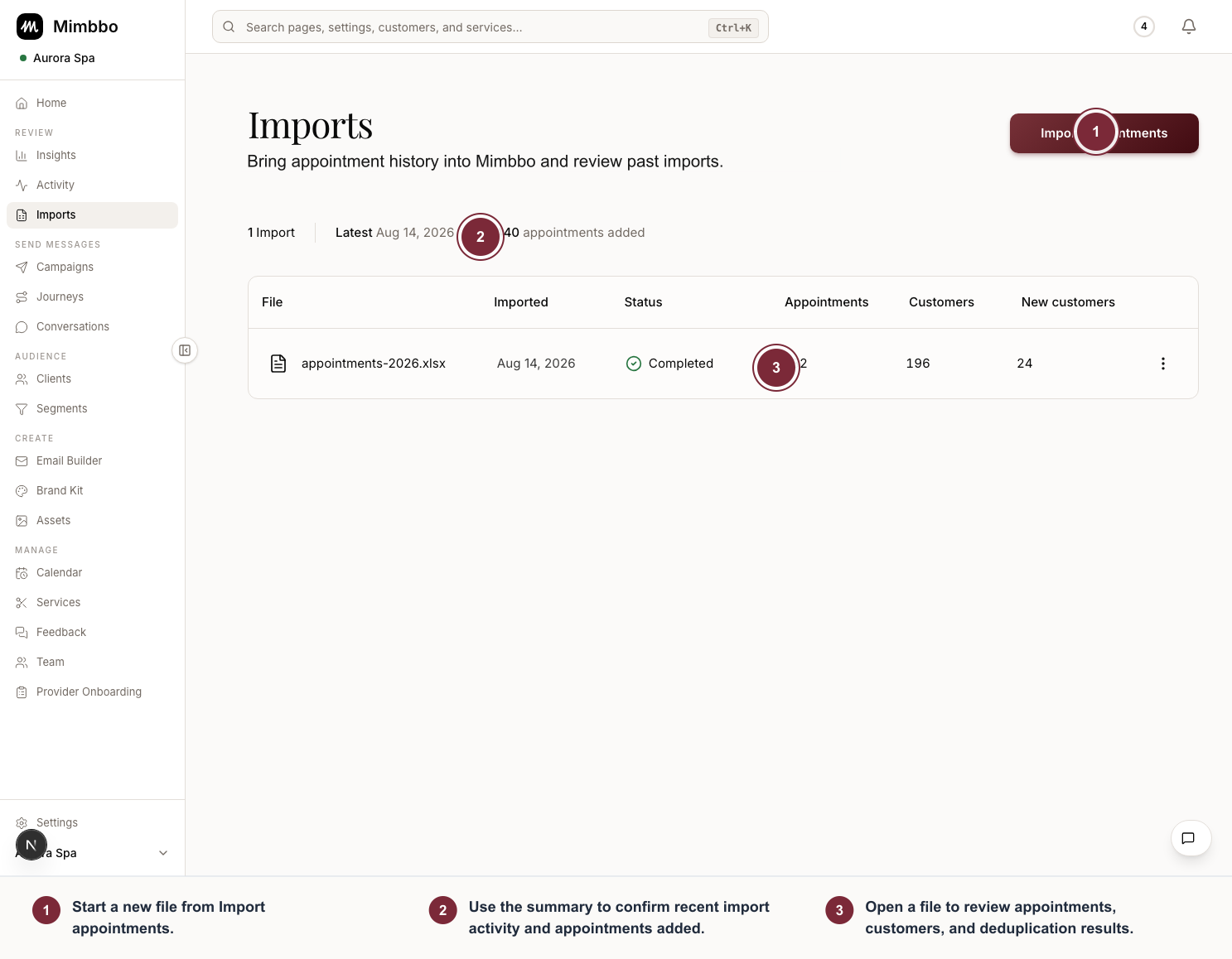
Use Imports to add another appointment export or review what a previous file added.
- Start a new file from Import appointments.
- Use the summary to confirm recent import activity and appointments added.
- Open a file to review appointments, customers, and deduplication results.
Review what an import saved
Open an import to review its appointments and customers. Each appointment has one result:
- Added: Mimbbo did not already have that appointment.
- Updated: Mimbbo matched an existing appointment and saved changed details from the file.
- Unchanged: Mimbbo matched an existing appointment with the same details, so it did not add a duplicate.
When an export includes an appointment, booking, or confirmation ID, Mimbbo uses it to recognize the same appointment even if its date changes. Otherwise, Mimbbo matches a customer by normalized email first, then phone, then name, and uses the service date, time, and service to recognize the appointment. Check the detail page if an export without IDs changes any of those values, because it may be treated as a different appointment.
For a booking with an appointment, booking, or confirmation ID and multiple services, the latest file replaces that booking’s earlier service list. Renamed services are updated, new services are added, and services no longer listed are removed from the appointment totals.
The customer list also shows whether the import created a new customer or matched one already in Mimbbo.
Download or delete import history
Admins and team members with modify access can download the original file. The download link expires after a short time, so request it again if it no longer opens.
Only admins can delete import history. Deleting it removes the original file and the import’s appointment and customer summary. It does not remove appointments or customers already saved in Mimbbo.
Review the first insights
When the import supports a useful business pattern, a snapshot appears during setup or in Updates and the notification bell. Select View insights for the details.
The result depends on what the appointments support. Mimbbo may show:
- Regular clients who are past their usual return time.
- New clients who have not booked a second visit.
- A service that clients booked more than once.
- Regulars who already have their next visit booked.
If the file does not support a clear pattern, Mimbbo does not show one. The import can still finish successfully and its appointments remain available to Mimbbo journeys and future intelligence.
Booking opportunity amounts are estimates based on what the relevant clients usually spend. They are not guaranteed revenue. You can change the client and visit assumptions on the insight page.
Enable customer journeys
Mimbbo can analyze appointment history and identify eligible clients without contacting anyone.
To allow outreach:
- Select Enable journeys.
- Review the short explanation that Mimbbo may contact eligible clients.
- Select Enable journeys again to confirm.
This confirmation enables every available built-in journey. Mimbbo begins eligible outreach only after you confirm. You can pause an individual journey later from its journey detail menu.
If you choose Go to dashboard while journeys are still off, Mimbbo asks you to enable them or explicitly continue without them.
If the import needs attention
Follow the message on the import page to retry or choose a different export. A failed import remains in Review → Imports until an admin deletes its history.