Notifications
Keep up with business updates and choose how Mimbbo reaches you.
Revisit past notifications
Open the bell, then choose View all notifications to see your notification history. Both read and unread notifications remain available for 30 days. Marking a notification as read does not delete it.
Select a notification to open its related page and mark it as read. Mark all as read clears the unread count while keeping the history. If saving the read status fails, choose Retry in the error message.
Choose Notification settings from the history page to change your delivery preferences.
Understand notification channels
Mimbbo can use three notification channels:
- Inbox keeps the notification in the in-app bell feed.
- Email sends the notification to your account email.
- Push sends a device notification when push is available and connected.
These preferences apply to your teammate account. Other team members can have different preferences.
Inbox notifications remain available for 30 days. This is the default lifetime for every new notification in the bell feed.
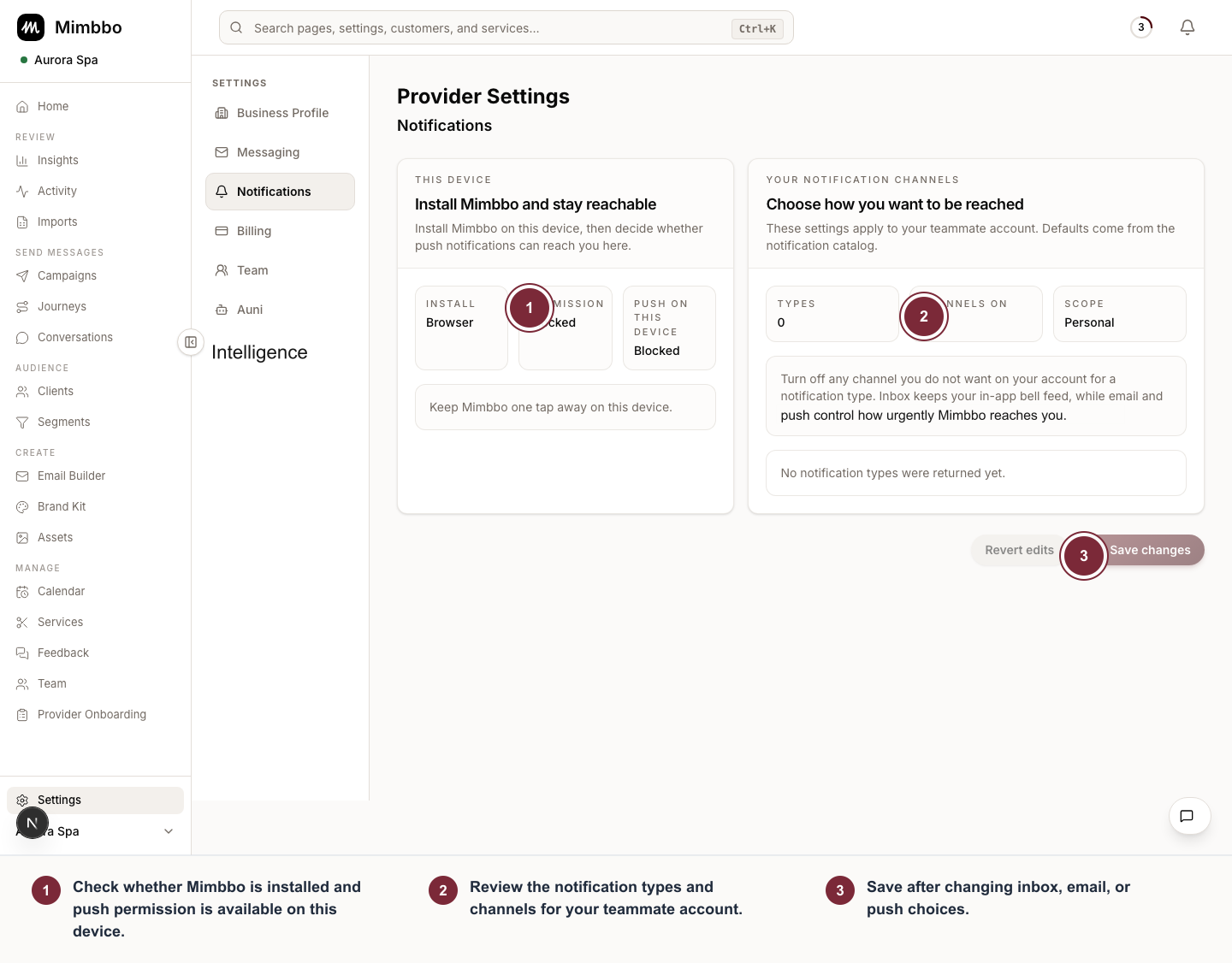
Notification settings separate device readiness from the channels chosen for your teammate account.
- Open a notification category.
- Choose Inbox, Email, and Push for each notification type, then save.
- Open Push on this device to check installation and browser permission.
When an appointment-history import produces a useful business insight, Mimbbo adds an Appointment history insights notification. It opens the same snapshot and insight page used during setup. This notification uses the inbox by default; it does not send email or push unless those channels are enabled for the type.
Choose channels by notification type
- Open Settings.
- Choose Notifications.
- Open a notification group.
- Turn inbox, email, or push on or off for each notification type.
- Save changes.
Switches show your current choices. Mimbbo uses its defaults for notification types you have not customized.
Install Mimbbo for device push
Open Push on this device, below the notification categories. Push notifications depend on the device and browser.
- Install Mimbbo on the device when the install action is available.
- Safari may require using the browser share or file menu to add Mimbbo to the home screen or dock.
- Push must be enabled on the installed device.
- If browser permission is denied, re-enable notifications in browser settings or keep using bell and email notifications.
Mimbbo only shows the push permission prompt after you are logged into a workspace. It does not ask for notification permission on the public login page.
Troubleshoot notifications
- If the bell feed works but push does not, check install state, browser permission, and device push support.
- If email notifications are too noisy, turn off email for specific types instead of disabling all notifications.
- If preferences change while the page refreshes, keep editing and save once the draft looks right.