Business profile
Your business profile controls the identity Mimbbo shows to clients across booking and customer communications.
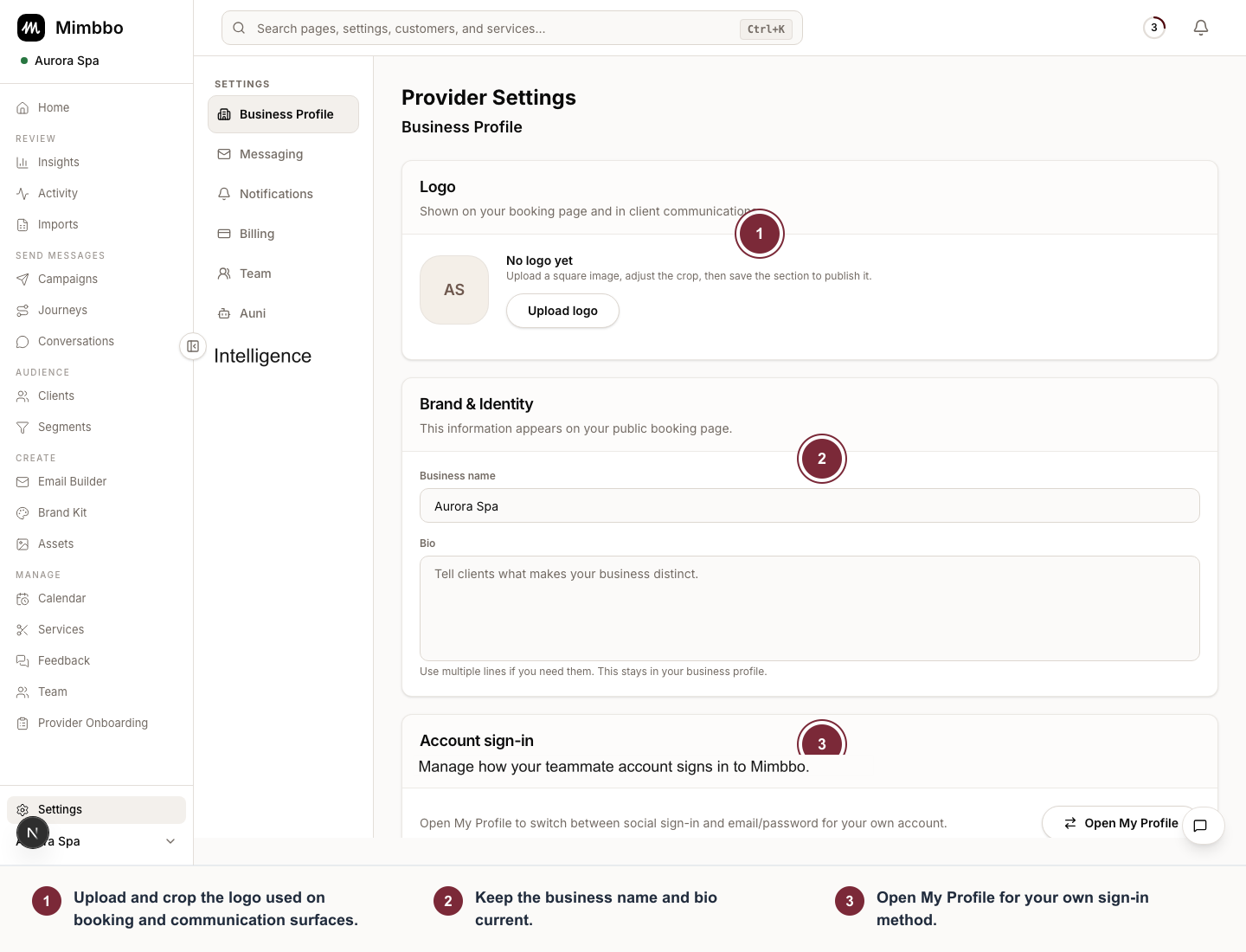
Business Profile keeps customer-facing identity together and links personal sign-in controls to My Profile.
- Upload and crop the logo used on booking and communication surfaces.
- Keep the business name and bio current.
- Open Your sign-in, then Open My Profile for your own sign-in method.
Update brand and identity
- Open Settings.
- Choose Business Profile.
- Open Business logo to upload or replace your logo.
- Open Business details to update the business name and bio.
- Save changes.
Upload a square image when possible. Mimbbo lets you crop the logo before saving so it works in compact places.
Update contact and public details
Open Contact to update your client-facing email, phone, and website. The public booking link is view-only here; update booking configuration from Calendar when you need to change booking settings.
The Mimbbo business email appears once messaging is configured. Customers can use this Mimbbo-managed address to reach your business.
Add social profiles
Open Social profiles, add your Instagram, TikTok, or Facebook handles, then choose Save changes.
Delete business carefully
Open Business ownership & deletion in Business Profile to review deletion. If billing requires cancellation first, finish the billing step before deletion becomes available.
Deleting the business also disconnects every Gmail and Microsoft mailbox linked to it. Mimbbo stops syncing those mailboxes and removes its stored access. The mailbox and its email remain with Google or Microsoft.
If Mimbbo cannot finish disconnecting a mailbox, it does not delete the business. Try again or contact support.