Auni Assistant
Settings includes Auni controls for providers who want to keep assistant behavior close to the rest of provider configuration.
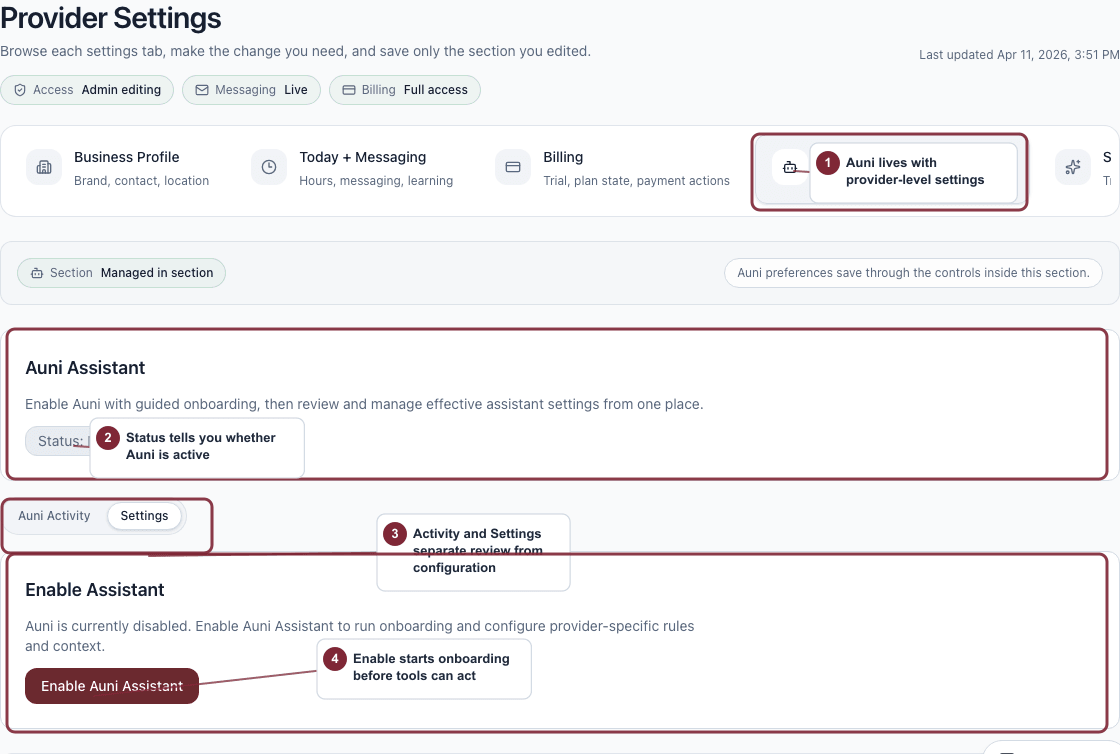
Set up Auni
- Open Settings.
- Choose Auni.
- Choose Enable Auni Assistant and complete the setup steps.
- Review the assistant status when setup finishes.
The Settings view starts with the goals Auni can help with. Auni Activity shows recent actions and approvals.
Choose the help Auni can provide, then review its work in Auni Activity.
- Choose which goals Auni can handle.
- Choose Save Auni settings after changing goals.
- Open Channels & memory for email, in-person assistance, and conversation memory.
Choose topics Auni can discuss
Topics control what Auni is allowed to handle in customer conversations.
- Help clients choose services covers service, price, and availability questions.
- Answer business logistics covers location, hours, and booking-link questions.
- Support appointment questions covers appointment details and upcoming bookings.
Turning a topic off means Auni should not respond to requests in that area, even when related tools are available.
Manage channels and memory
Open Channels & memory to choose Email or In person and how many days Auni remembers conversations. Choose Save settings to apply these changes.
To remove Auni, open Delete assistant inside Channels & memory and review the confirmation.
Choose what Auni can do
Open Tools (legacy) to review action-level controls. Tool controls set how much authority Auni has for actions such as booking, rescheduling, canceling, or sending messages.
Common modes include:
- Off for actions Auni should not take.
- Suggest first or Draft for review when you want provider approval before anything happens.
- Auto guarded or automatic modes when Auni can act within guardrails.
Use the stricter mode when the action affects bookings, money, client commitments, or your brand voice.
Know when settings are read-only
Admin overrides can make Auni settings or specific tools read-only. When that happens, your saved settings remain intact but do not apply until the override is removed.
For the full assistant workspace, read Auni Assistant.