Set booking rules
Booking rules control how Mimbbo turns team availability and services into appointment times clients can book.
Update the booking link
- Open Calendar and switch to Settings.
- Turn the calendar on when you are ready to accept bookings.
- Enter the booking link slug you want to use.
- Save the settings.
Mimbbo uses the provider booking namespace for live booking links, such as /pro/your-business/book. Older booking links can still redirect, but the provider booking link is the format to share going forward.
Choose the slug carefully. After it is saved, Mimbbo does not let you change it from the normal booking settings flow.
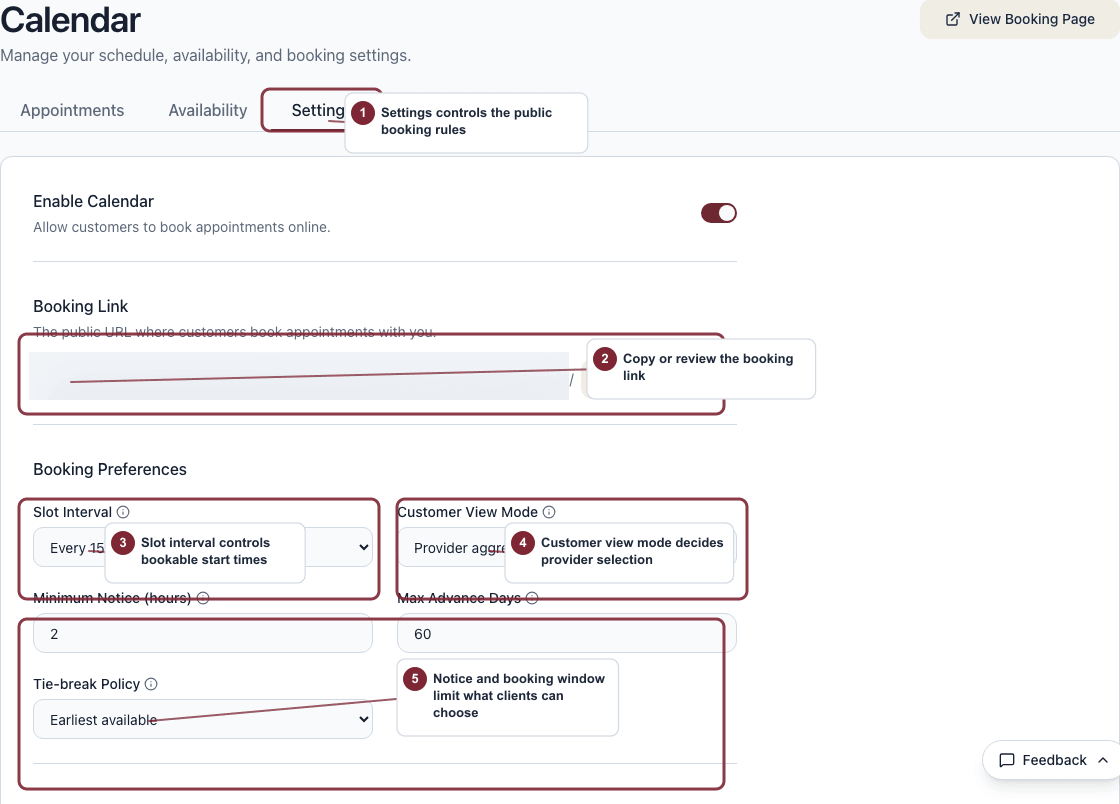
Start in Calendar settings by confirming that booking is enabled and that you are sharing the intended booking site.
- Open Settings from Calendar.
- Confirm the calendar is enabled before troubleshooting missing times.
- Copy or open the booking site you intend to share.
Choose how clients should book
- Open Calendar and switch to Settings.
- Find the customer booking mode.
- Choose Provider aggregate when Mimbbo should offer the first available matching provider.
- Choose Team member selection when clients should pick a specific person.
- If you use provider aggregate, choose how Mimbbo should pick between matching providers.
- Save the settings.
Use Earliest when the first open time matters most. Use Round robin when you want new appointments spread across available team members.
Adjust scheduling rules
- Open Calendar and switch to Settings.
- Pick a slot interval of either 15 or 30 minutes.
- Set the minimum notice in hours.
- Set the maximum number of days ahead that clients can book.
- Save the settings.
- Open the booking link and test a few dates.
Saving Calendar settings also confirms the current booking policy for Get ready. If nothing changed, select Confirm policy after reviewing the settings.
The slot interval controls the start times clients can choose. Service and add-on duration controls how long the appointment lasts. A service duration does not need to match the slot interval for clients to continue.
Understand what appears on the public booking page
Your booking page can show your business profile, booking policy, hours, team, reviews, and gallery photos. Gallery posts from Services > Gallery are preferred for the landing photo strip. Service media can still appear as a fallback when gallery content is not available.
Clients move through booking in four main steps:
- Select a service.
- Select add-ons when the service has them.
- Choose a provider when team-member selection is enabled.
- Pick a date and time, then enter their details.
Manage client appointment links
Client manage links let customers review appointments, reschedule when times are available, cancel when allowed, and leave or edit a review when Mimbbo marks the appointment reviewable.
Review reminder links can open the manage page directly on the requested appointment review section. This helps clients leave feedback without searching through the full appointment list.
If clients still cannot book
- Make sure the calendar is turned on.
- Confirm weekly hours or overrides exist for the dates you tested.
- Recheck whether the booking mode matches how your team actually works.
- Review minimum notice and maximum booking window settings.
- Confirm the service is bookable in Services.