Team permissions
Team settings control who can access your Mimbbo business and what they can change.
Invite a team member
- Open Settings.
- Choose Team.
- Invite a team member.
- Add their name, title, email, phone, and starting role.
- Send the invite.
Pending invitations appear with active members so you can see who still needs to respond. An invitation does not grant business access until the invited person accepts it.
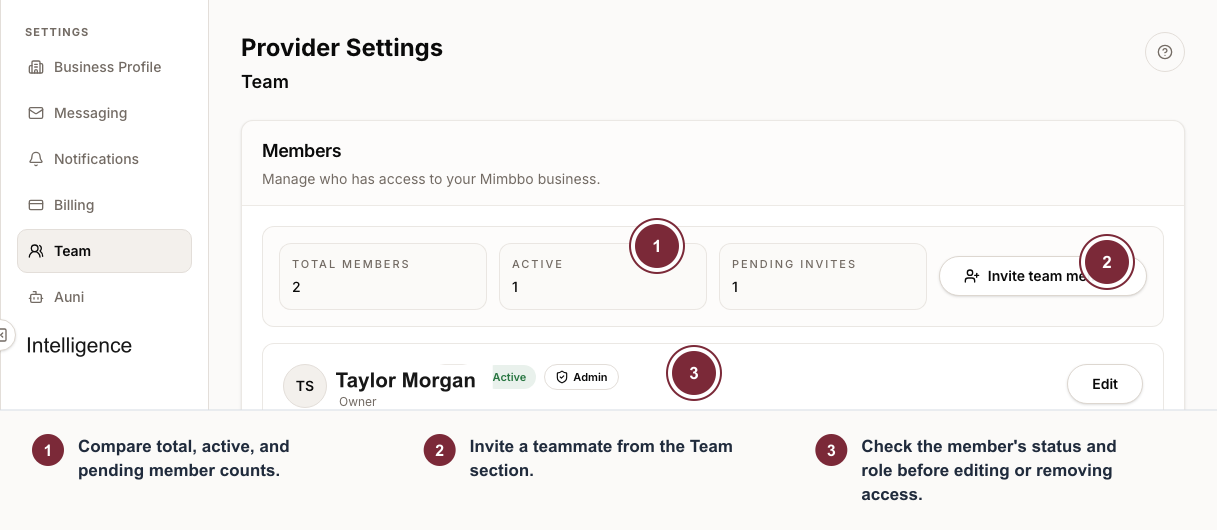
Team settings keep active members and pending invitations together so access state is visible before you edit or remove anyone.
- Check active and pending member counts.
- Invite a teammate from the Team section.
- Check the member’s status and role before editing or removing access.
Mimbbo emails the invited person a secure review link. The same invitation also appears after they sign in with the invited email:
- A sign-in notice points them to the invitation.
- The business switcher lists pending invitations separately from businesses they can already access.
- They can review the business and access level, then accept or decline.
- After acceptance, the business becomes available in the switcher.
People who belong to several businesses keep their existing access while reviewing other invitations.
Respond to a team invitation
Sign in with the email that received the invitation. Use the sign-in notice, the business switcher, or the link in the Mimbbo email to review it.
Choose Accept to join the business or Decline to remove the invitation from your account. Accepting the same invitation more than once does not create duplicate access.
If an invitation expired or an admin revoked it, ask a business admin to send a new invitation. If Mimbbo says the invitation belongs to another email, sign out and use the invited email.
Edit or remove a team member
- Open Settings and choose Team.
- Open the member you want to update.
- Choose Edit and change their details or role.
- Save changes.
Removing an active member immediately revokes access. Removing a pending member cancels the invitation, so its email link can no longer grant access.
Understand permission levels
- Admin can manage business settings, billing, team access, and client data.
- Modify can manage permitted day-to-day work. Business settings are view-only.
- View can browse permitted business information. Business settings are view-only.
Personal notification preferences and My Profile are separate from business permissions. Open Contact & activity under a member to see their phone number and last update.
Use the lowest role that still lets the person do their work.