Calendar
Calendar is where you manage booked work, team availability, and the rules that turn your schedule into client-facing booking times.
Use Calendar when you need to
- Review appointments for a specific day.
- Reschedule, cancel, mark no-show, or reactivate an appointment.
- Create a new appointment for a client.
- Update weekly availability or one-time schedule changes.
- Control your booking link, booking mode, and scheduling rules.
- Understand what clients see when they book online.
Common tasks
Review and manage appointments
- Open Calendar.
- Stay on Appointments.
- Use the mini calendar or day navigation to choose the date.
- Filter by team member when you only want one person’s schedule.
- Open an appointment to review the client, service, provider, price, and time.
- Reschedule, cancel, mark no-show, or reactivate the appointment when those actions are available.
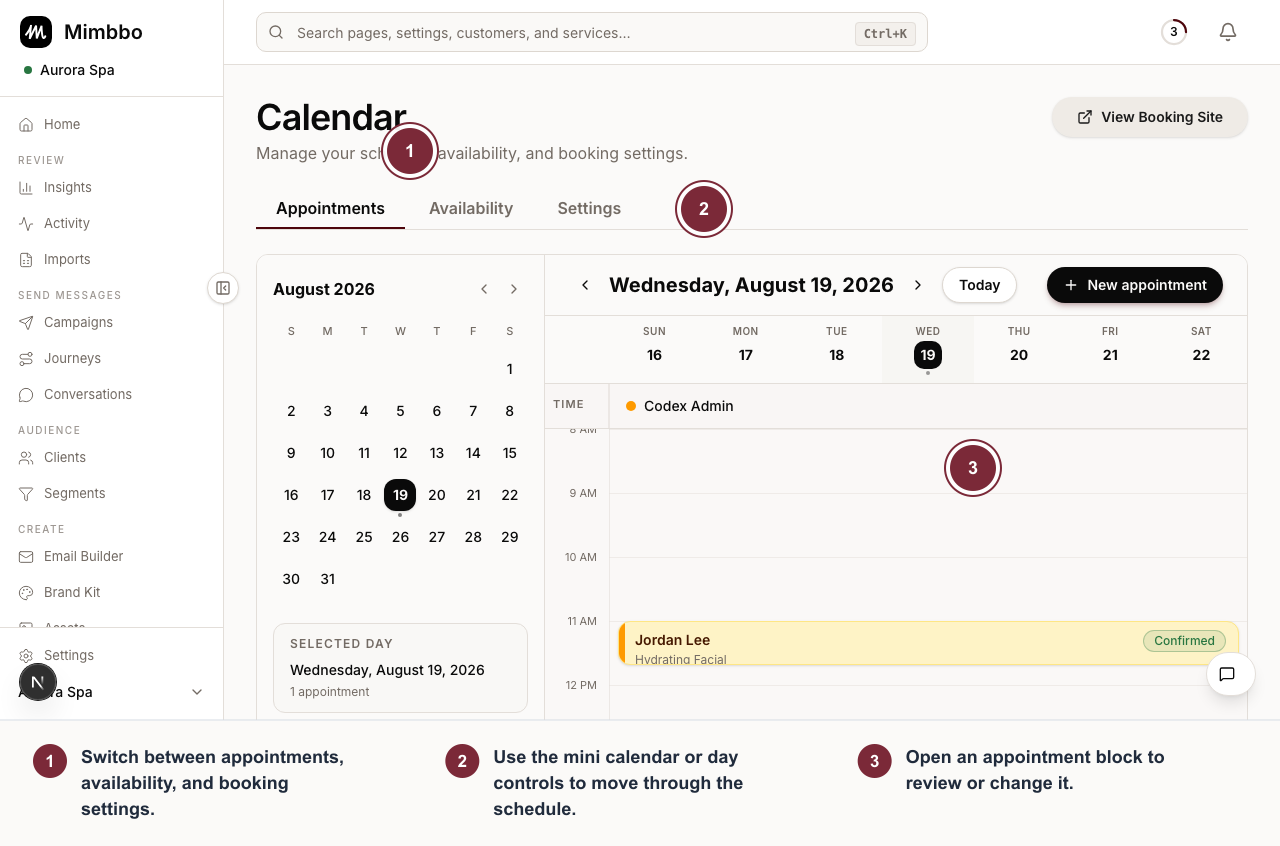
Use the appointments view to choose a day, scan the schedule, and open the booking you need to manage.
- Switch between appointments, availability, and booking settings.
- Use the mini calendar or day controls to move through the schedule.
- Open an appointment block to review or change it.
The day view shows appointment blocks by time. The current-time line appears only when the selected day is today and the time falls inside the displayed schedule.
Update availability
- Open Calendar.
- Switch to Availability.
- Select the team member you want to update.
- Change weekly hours or add an override.
- Save the changes before leaving the page.
Update booking settings
- Open Calendar.
- Switch to Settings.
- Review the booking link, booking mode, and scheduling rules.
- Save the changes.
- Open the booking link and test a few dates.
Start here
- Read Set team availability if you are trying to make a date bookable.
- Read Set booking rules if clients can see the wrong times or cannot book the way you expect.
- Read Explain public booking if you need to understand the client-facing booking page.
Last updated on