Set team availability
This is where you tell Mimbbo when you or a team member can be booked.
Understand the three schedule types
- Weekly hours are the normal schedule Mimbbo should use every week.
- Date overrides are for one specific date, such as a holiday, closure, or special hours.
- Recurring weekday overrides are for a temporary pattern that repeats on the same weekday.
Update weekly hours
- Open Calendar and switch to Availability.
- Select the team member you want to edit.
- Add or adjust the normal working hours for each day.
- Save the weekly schedule.
If you are not an admin, Mimbbo only lets you edit your own availability.
The public booking page uses these saved weekly hours for its Hours section. Its date picker shows only days that still have a bookable time for the selected service and provider choice. A day can be absent even when it is normally open if its times are already booked, blocked by an override, outside the booking window, or too short for the selected service.
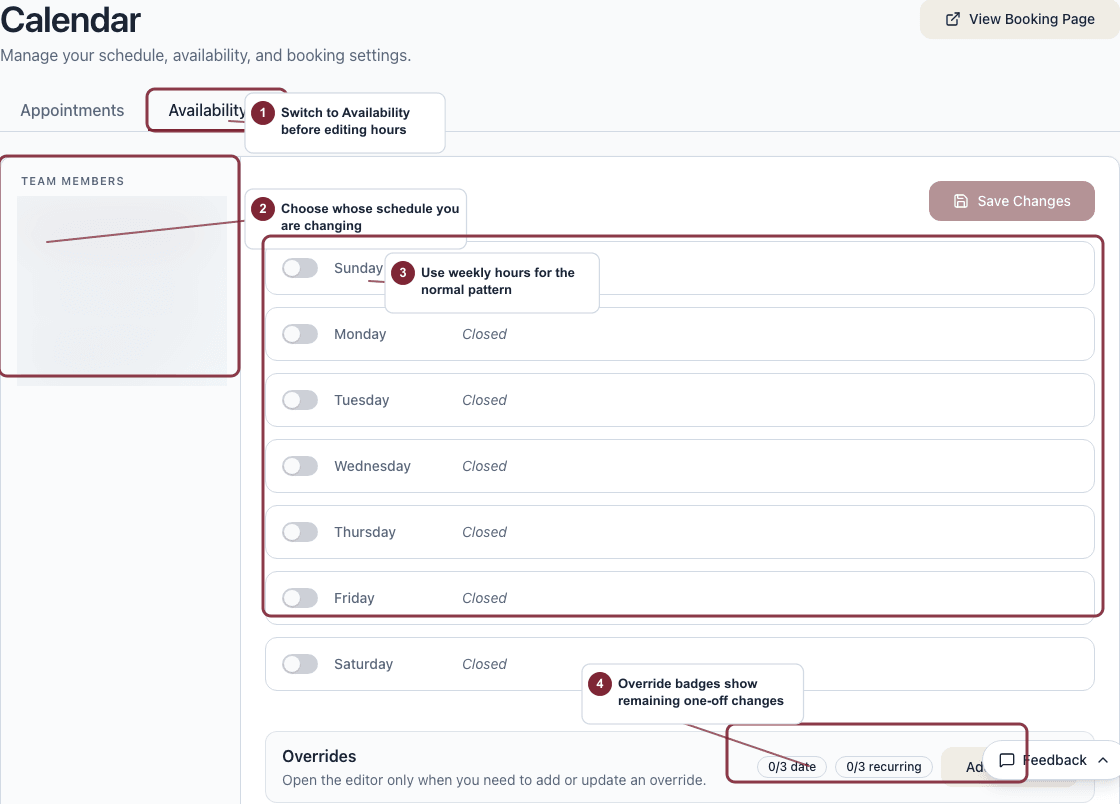
Use the Availability tab when the question is whether a provider should be bookable on a normal day or an exception date.
- Pick the team member before editing the schedule.
- Use weekly hours for the normal pattern.
- Use overrides for one-off dates or temporary weekday changes.
- Check the override badges before adding another exception.
Add a date override
- Open Calendar and switch to Availability.
- Select the team member you want to edit.
- Choose to add a date override.
- Pick the exact date that needs special hours.
- Enter the hours for that date, or mark the day unavailable if the person should not be bookable.
- Save the override.
Use a date override when the change only applies once.
Add a recurring weekday override
- Open Calendar and switch to Availability.
- Select the team member you want to edit.
- Choose to add a recurring weekday override.
- Pick the weekday that needs a temporary repeating pattern.
- Enter the hours for that weekday pattern and add an end date if Mimbbo asks for one.
- Save the override.
Use a recurring weekday override when the same temporary change should repeat, such as adjusted hours every Tuesday for a few weeks.
What can block an override
- Every override needs a start time and an end time.
- The end time must be later than the start time.
- Mimbbo allows up to 3 date overrides and up to 3 recurring weekday overrides per team member.
- Mimbbo will not save duplicate overrides for the same date or repeating weekday pattern.
- A recurring weekday override cannot end in the past.
If a day still looks wrong
- Make sure you are editing the correct team member.
- Check whether a weekly schedule and an override are both affecting that date.
- Check the selected service duration and booking rules when an open weekday does not appear in the public date picker.
- Review the override count badges to see if you are already at the limit.
- If the schedule looks correct but clients still cannot book, review the rules in Set booking rules.