Use templates and assets
Templates help you start campaigns from a reusable email design instead of rebuilding each send from scratch. Mimbbo supports block templates and HTML templates with editable areas.
Choose a template
- Open Campaigns.
- Choose the recipients for the campaign.
- Select Browse templates.
- Search the template gallery by name, tag, category, or layout.
- Open a template preview to inspect the design.
- Choose Use template to open it in Template Studio.
You can also choose Start blank email when you want to build a block template from the editor.
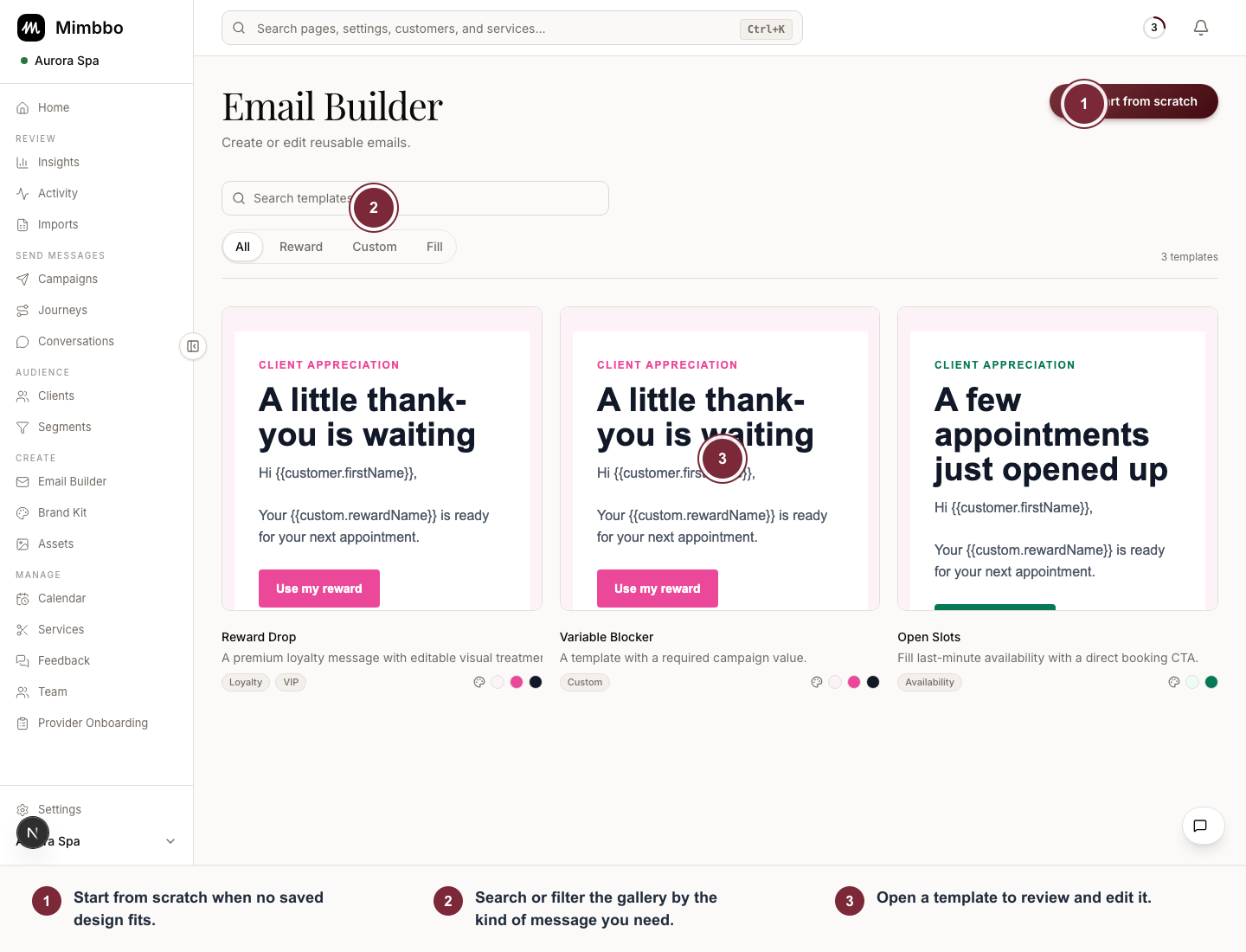
Use the gallery to narrow reusable designs before opening one in the editor.
- Start from scratch when no saved design fits.
- Search or filter the gallery by the kind of message you need.
- Open a template to review and edit it.
Work in Template Studio
- Use Blocks to add, reorder, format, or delete sections of a block template.
- Use Variables to insert personalization such as customer name, provider name, booking link, campaign name, and unsubscribe URL.
- Use Brand to review the provider Brand Kit and apply it to the template.
- Use Edits on HTML templates to change the editable text, color, URL, and image slots defined for that template.
Brand Kit values come from the provider profile and Brand Kit page. The editor lets you apply those values, but Brand Kit itself is managed outside the template editor.
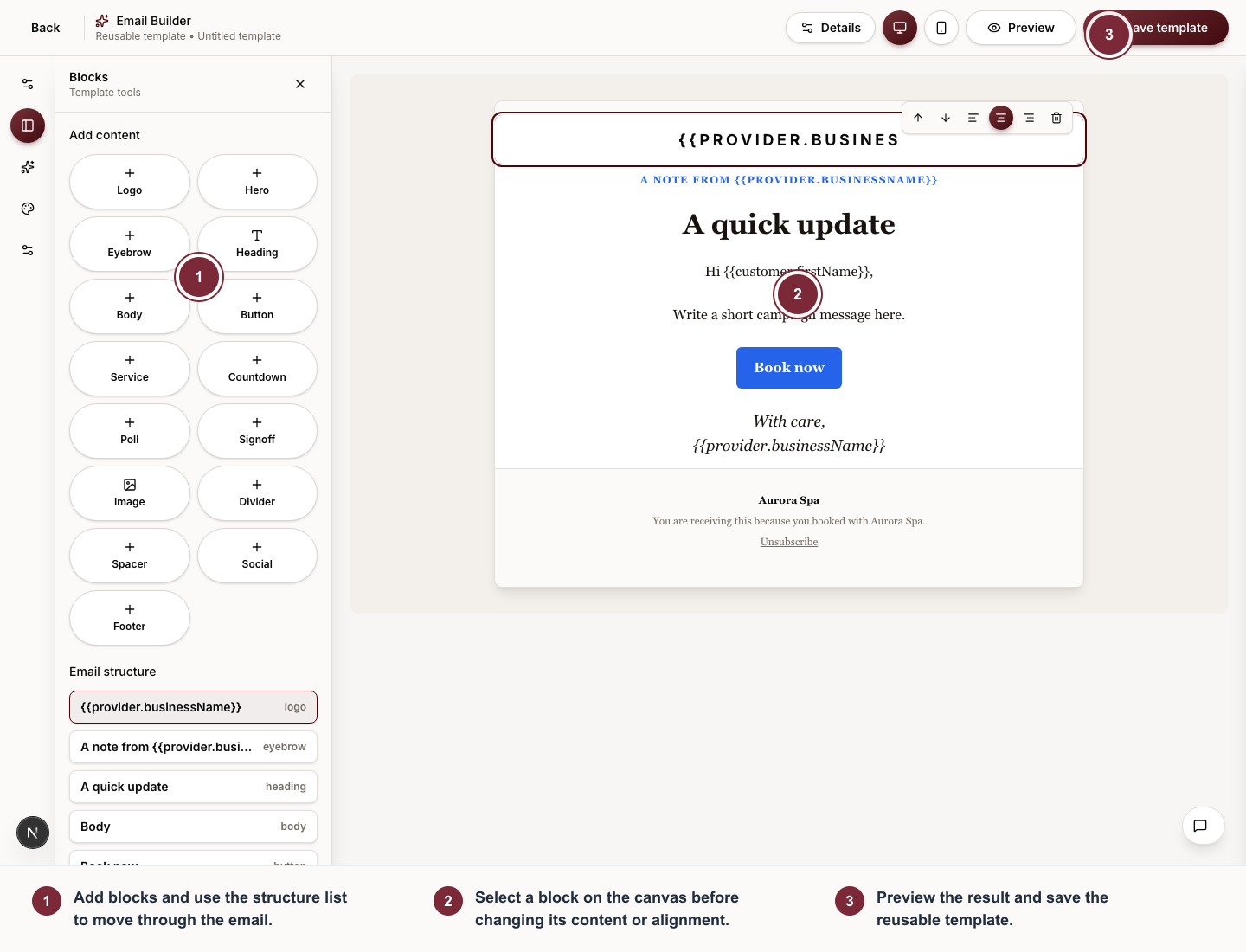
Template Studio keeps reusable content blocks on the left, the email canvas in the center, and preview and save actions at the top.
- Add blocks and use the structure list to move through the email.
- Select a block on the canvas before changing its content or alignment.
- Preview the result and save the reusable template.
Apply Brand Kit
- Open a template in Template Studio.
- Open Brand for block templates, or Edits for HTML templates.
- Select Apply Brand Kit.
- Review the logo, colors, font, footer text, booking link, and social links in the preview.
Provider logo changes are managed from Brand Kit or provider settings. When a logo is saved there, it can be applied to block and HTML templates.
Use images from Assets
The Assets library includes:
- Images uploaded while editing templates.
- Images uploaded directly from Assets.
- Provider service images.
- Provider service gallery images.
When composing a template, image blocks, hero blocks, logo blocks, and HTML image slots can use an existing image from Assets or a new upload. Uploaded images remain available in the Assets library even when the campaign is not sent.
Preview and test
- In Template Studio, select Preview.
- Review the rendered email.
- Enter an email address in Send test email.
- Select Send test email.
Test emails use the current rendered template, including Brand Kit values, editable HTML slots, images, and campaign variables. They do not send the campaign to the selected recipients.
Finish the campaign
- Select Save template if you want to reuse the current design later.
- Select Continue to review.
- Review the final campaign preview and send checklist.
- Choose Send now or schedule a local send time.
Notes and limits
- A subject is required before a template can be sent.
- A template needs either text or HTML content.
- HTML templates only expose the editable areas defined for that template.
- Custom variables must have a campaign value or fallback before sending.
- Assets hides storage details during normal browsing; use image detail info only when you need the path or URL.