Reviews and feedback
Mimbbo asks customers for input after a completed visit. A customer can choose one of two ways to respond:
- Public review: A star rating and optional comments or photos shown on your booking page.
- Private feedback: A message only your business can read.
Private feedback is never published. You can thank the customer by email, but you cannot post a public response to private feedback.
Open your feedback
Go to Manage → Feedback.
Use Reviews for public reviews. Use Private feedback for messages sent only to your business. Select an item to see the customer, service, visit date, message, and any response you have sent.
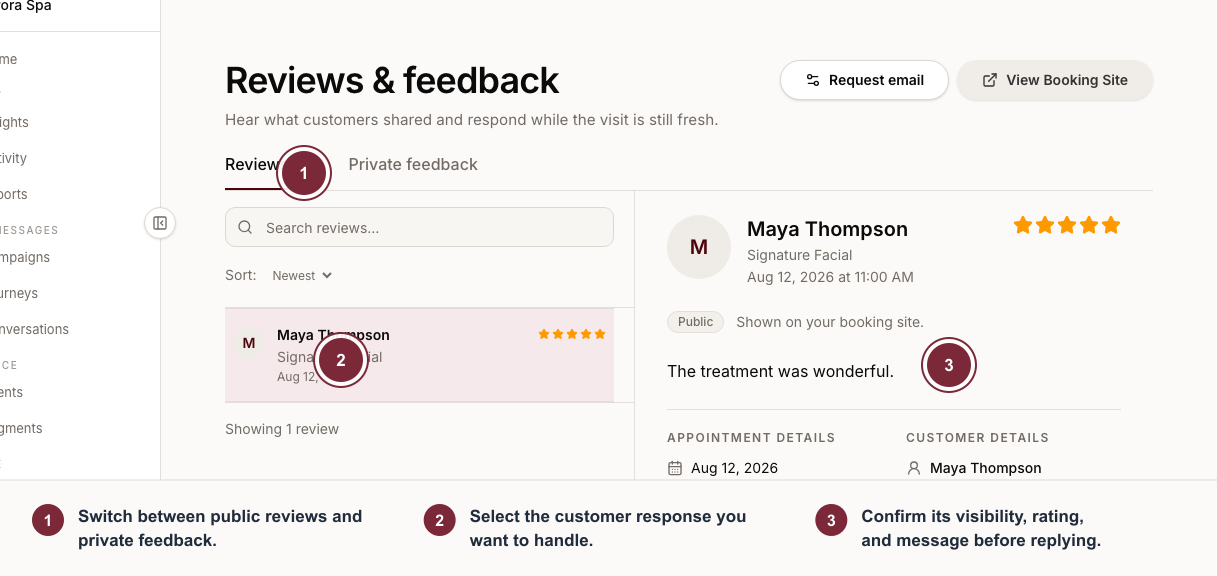
Separate public reviews from private feedback before responding, because the available actions and visibility differ.
- Switch between public reviews and private feedback.
- Select the customer response you want to handle.
- Confirm its visibility, rating, and message before replying.
Team members with view access can read reviews and feedback. Team members with modify or admin access can thank customers and publish responses.
Thank a customer privately
- Open a review or private feedback.
- Select Thank customer.
- Edit the subject and message.
- Select Send thank-you email.
The note is sent to the customer by email. It is not shown on your booking page.
Reply to a public review
- Open a review.
- Write your message under Reply publicly.
- Select Post public reply.
Your response appears beneath the customer’s review on your booking page. Private feedback does not offer this action; use Thank customer to send a private email instead.
Choose the request email
Select Request email on the Feedback page.
Choose a compatible feedback-request template, then select Use template. To change the copy or design, select Create custom copy. Mimbbo opens the copy in Email Builder, where you can edit the subject, preheader, headline, explanations, button label, and closing.
Mimbbo keeps the customer, appointment, and secure response link fields protected. The selected template must include the feedback response link before it can be used.
What the customer sees
The email opens the completed appointment in the customer’s appointment page. The customer chooses Public review or Private feedback before writing anything. Submitting either response stops the remaining reminders for that visit.
Notifications
Mimbbo adds an inbox notification when a customer leaves a review or sends private feedback. Select the notification to open the matching item in Feedback. You can change notification channels in Settings → Notifications.