Work the inbox
Use the inbox to sort active work, reply to clients, and keep low-quality threads out of the normal workflow.
Find the right thread faster
- Open Conversations.
- Use All, Inbox, or Appointments to narrow the list.
- Search by name, email, phone, or subject when you already know who or what you need.
- Apply filters for status, unread, sender or staff member, and campaign.
- Open Spam only when you need to review messages outside the normal workflow.
Threads are not marked read until you open them. Use Mark unread when a thread still needs attention after you review it.
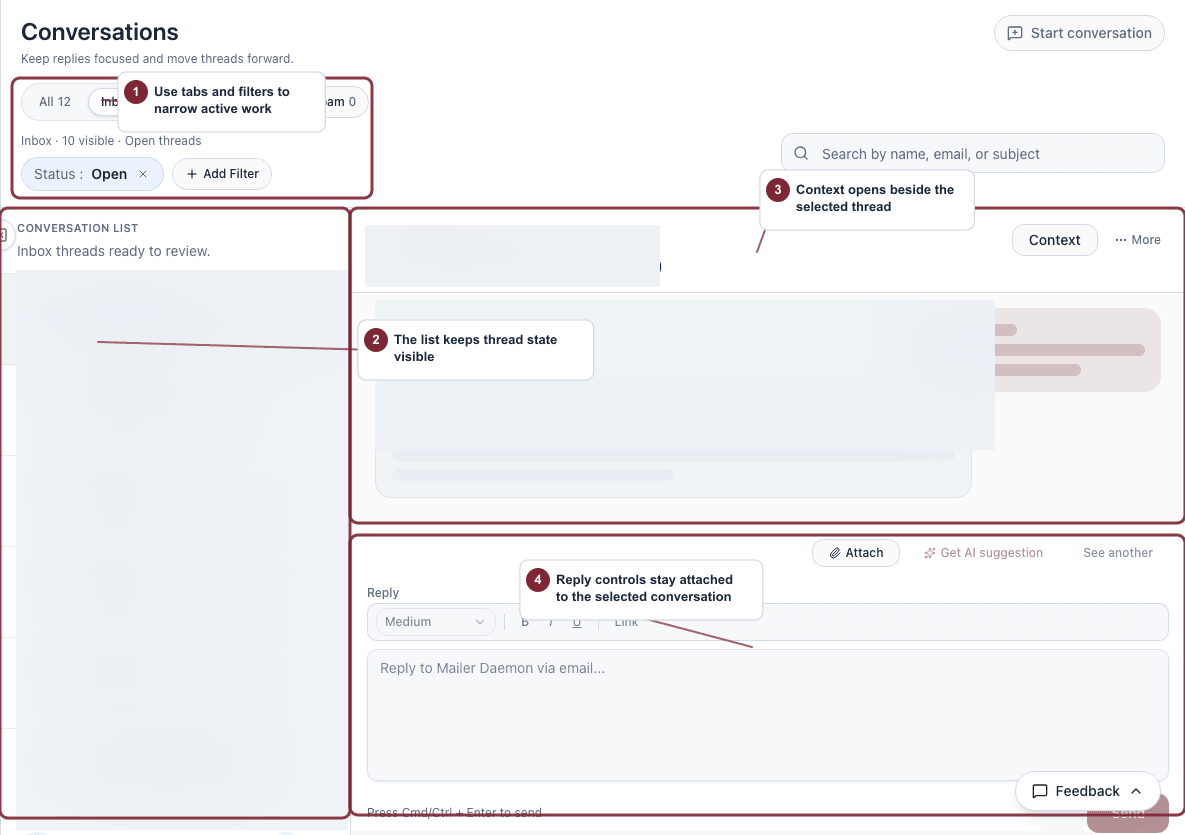
Narrow the inbox first, then select the thread you want to work or start a new message.
- Switch between all, inbox, appointment, and spam views.
- Search or add filters before scanning the thread list.
- Select a thread or start a new message when no existing conversation applies.
Reply to a thread
- Select the conversation you want to work on.
- Review the latest messages and linked client context.
- Write the reply.
- Add attachments when you need to send files.
- Send the reply.
Use reply suggestions
Reply suggestions are available only when Auni is enabled, Respond to emails is set to a suggestion mode, and the latest message in the selected email thread is inbound.
Suggestions are unavailable when:
- The thread is spam or blocked.
- Respond to emails is set to reply automatically.
- The latest message was outbound.
- Auni suggestions are turned off for the provider.
Use suggestions as drafts. Review the wording before sending.
Use the right thread action
- Mark a thread unread when it still needs attention.
- Close or reopen a conversation depending on whether the work is finished.
- Mark spam when the thread should leave the main inbox.
- Block a sender when future inbound email and new bookings from that exact address should be stopped.
- Delete only when you are comfortable hiding the conversation from the inbox list permanently.
Know what changes in spam and blocked states
- Spam conversations auto-delete after 10 days.
- Spam and blocked threads are read-only until you restore or unblock them.
- AI suggestions are unavailable while the thread is read-only.
Use bulk actions carefully
- Select the conversations you want to change.
- Choose the bulk action, such as read, unread, spam, restore, or delete.
- Confirm the action if Mimbbo asks you to.
- Review the result message so you know which conversations were updated.
Restore actions are available for spam conversations.
Last updated on