Set up conversations
Set up conversations when you want Mimbbo to send and receive customer messages from Conversations. Choose or manage the sending address in Settings > Messaging, then use Conversations as the inbox and reply workspace.
Choose how email should send
Use a Mimbbo mailbox when you want Mimbbo to manage the address for you. Use Connect existing email when you want outbound templates, campaign messages, and replies to come from an address your clients already know.
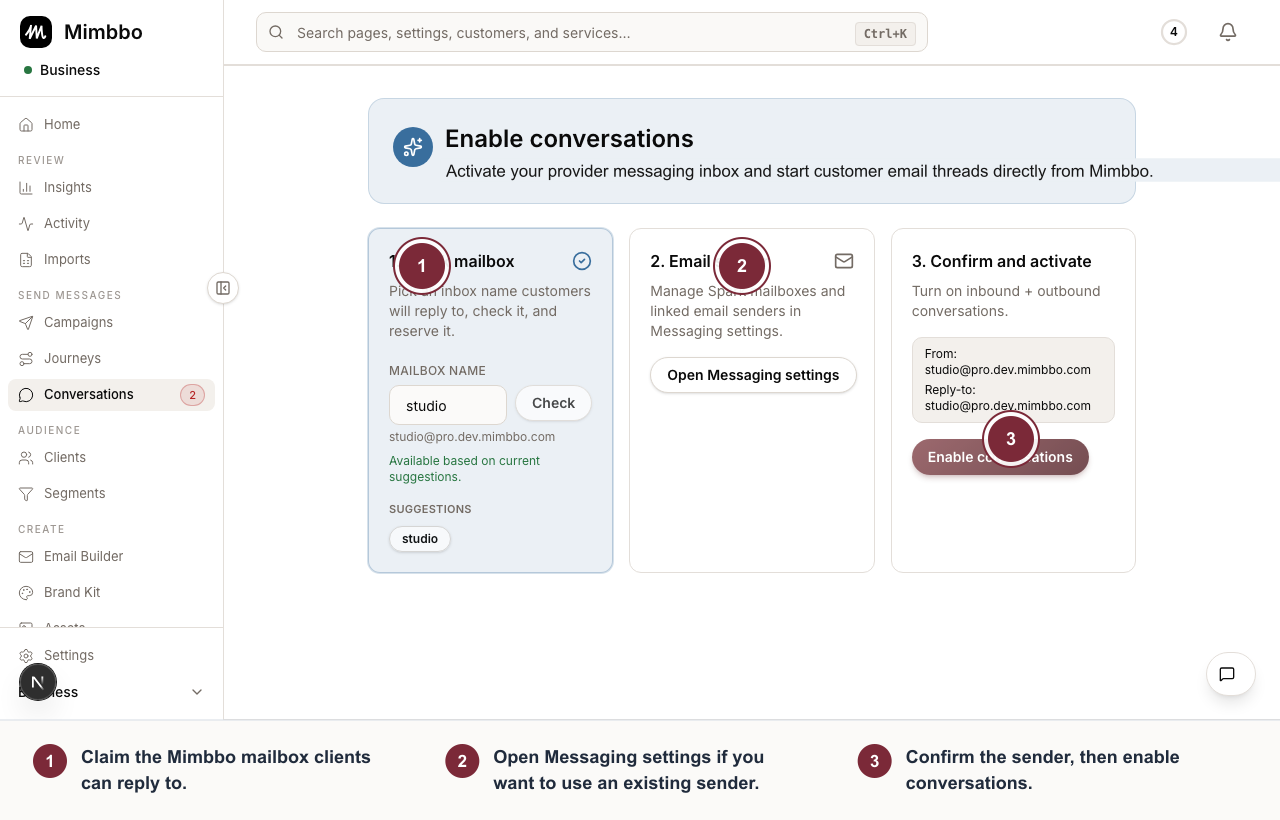
Conversation setup keeps mailbox selection, sender choice, and final activation in one guided sequence.
- Claim the Mimbbo mailbox clients can reply to.
- Open Messaging settings if you want to use an existing sender.
- Confirm the sender, then enable conversations.
Supported linked-email options start with:
- Google Workspace or Gmail.
- Microsoft 365 or Outlook.
- IMAP/SMTP for other mailbox providers when app passwords or equivalent credentials are available.
Choose the Mimbbo mailbox name
- Open Settings > Messaging.
- Enter the mailbox name you want to use.
- Check whether the name is available.
- Review the full address preview so you know what clients will see.
- If Mimbbo offers suggestions, choose one if it fits your business better.
The mailbox uses Mimbbo’s provider mail domain, such as pro.mimbbo.com in production or the matching environment domain outside production.
Connect an existing email address
- Open Settings > Messaging.
- Find linked email sender setup.
- Select Google or Microsoft 365.
- Complete provider authorization in your default browser.
- Return to Mimbbo and confirm that the address shows Connected before relying on reply sync.
For another provider, select IMAP/SMTP and complete the credential setup shown in Mimbbo. IMAP/SMTP does not open Google or Microsoft authorization.
After the address is connected, Mimbbo sends email templates, campaign messages, and conversation replies from that linked address. Mimbbo also keeps its own conversation copy so the inbox, client history, campaign results, and Auni context continue to work even if the provider mailbox changes later.
Fix common setup issues
- If the field is blank, Mimbbo will not continue.
- If the name is unavailable, choose a different one before you enable conversations.
- If Mimbbo blocks a restricted term, remove it from the mailbox name.
- If the mailbox is not configured yet, email replies stay unavailable.
- If the provider opens the wrong account, cancel and reconnect with the address you entered.
- If the mailbox is already connected to another business, remove it there before trying again.
- If the address shows Connected for sending, outbound email can work while replies remain unavailable.
Enable conversations
- Review the From and Reply-to preview in Messaging settings.
- Enable conversations.
- Wait for Mimbbo to finish the setup.
What happens next
- Conversations becomes available for normal inbox work.
- New email threads use the selected Mimbbo mailbox or linked email address.
- Replies to customer emails come back into Conversations when Mimbbo receives or syncs them.
Linked email analytics limits
Linked email does not use Mimbbo’s SES delivery pipeline, so some message telemetry is limited.
- Mimbbo records queued, sent or provider-accepted, failed, inbound received, and replied events.
- Mimbbo stores the rendered outbound subject and body, sender account, recipients, provider message id when available, attachments metadata, and conversation timestamps.
- Delivery, bounce, complaint, open, and click tracking may be unavailable unless the linked provider exposes it or Mimbbo can infer it from mailbox replies.
- Spam, virus, SPF, DKIM, and DMARC verdicts are not available from Mimbbo’s SES receipt rules for linked-account inbound mail.