Explain public booking
The public booking page is what clients use to learn about your business, choose services, and book time with you.
Review the booking page before sharing it
- Open Calendar.
- Go to Settings.
- Copy or open the public booking link.
- Review the page as a client would.
Your live provider booking link uses /pro/your-business/book. Older booking links can still work, but the provider link is the current format to share.
Understand the profile landing page
The landing page can show:
- Business name, logo, and profile details.
- Booking policy and hours.
- Team information when available.
- Gallery photos from Services > Gallery.
- Review summary and verified service reviews.
If gallery photos are not available, Mimbbo can fall back to service media for visual context.
Your business name and bookable services are enough to share the page. Photos, a logo, a description, and location details are optional. Without photos, the page leads with your name and service menu.
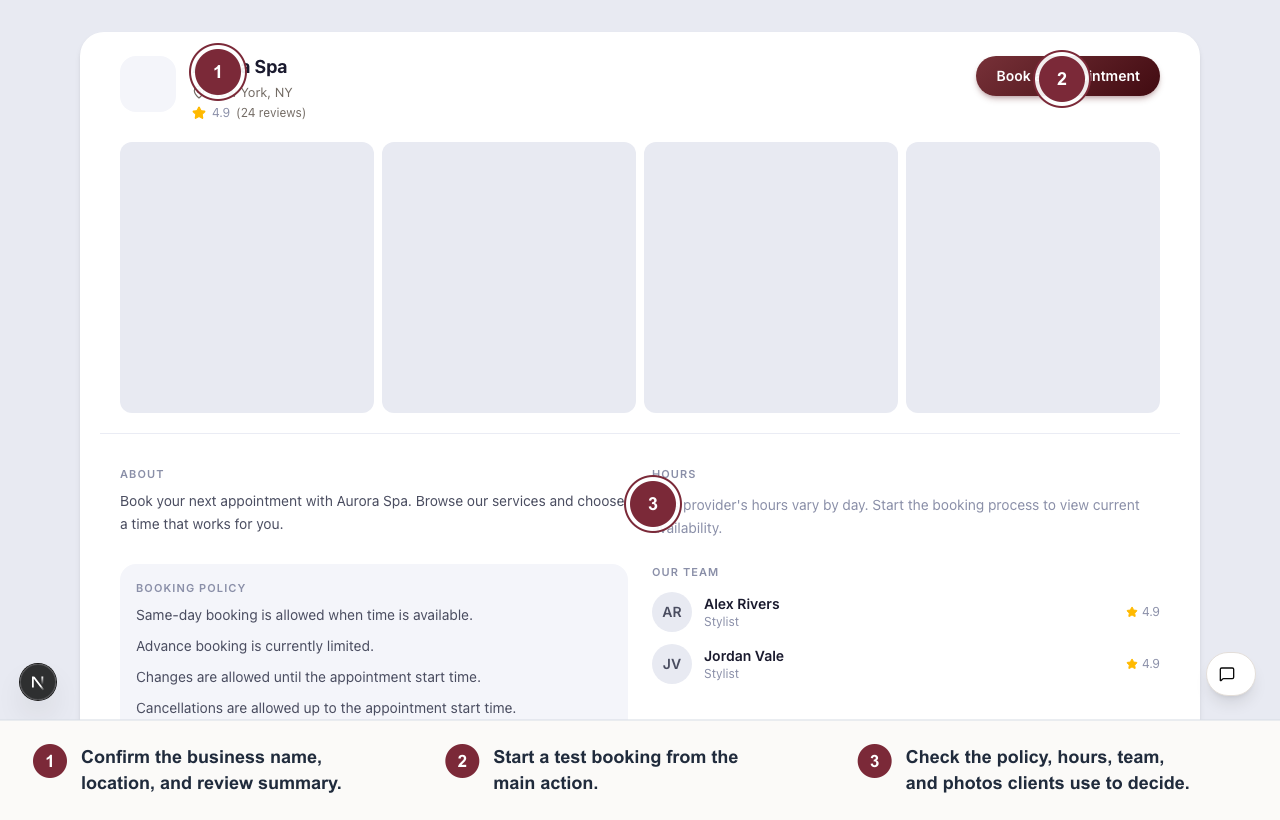
Check the page clients will see before sharing your booking link.
- Start a test booking to check the client experience.
- Confirm your bookable services, appointment lengths, and starting prices.
- Review the hours and policies clients use to plan their visit.
Before you book shows the calendar’s booking notice, booking window, cancellation deadline, and rescheduling deadline. These include the rules already in effect when you have not changed the defaults. A zero-hour notice setting means no minimum notice; it does not guarantee a free time today.
When weekly hours are not configured, the page says that hours have not been added. Clients can still open the booking calendar. If hours cannot be loaded, clients see a retry action instead of an incomplete schedule. Missing policy details do not mean changes or cancellations are unrestricted.
Understand the booking flow
Clients move through the flow in steps:
- Select a service.
- Select add-ons when the service has optional extras.
- Choose a provider when team-member selection is enabled.
- Choose a date and time.
- Enter contact details and confirm.
Service names and optional descriptions help clients choose. Service duration and selected add-ons determine the appointment length. Calendar slot interval determines which start times appear.
The date picker shows only days with a time that can fit the selected service and add-ons. It updates when the client changes the service or provider. The Hours section reflects the saved weekly availability, while the date picker also accounts for bookings, overrides, notice, and booking-window rules.
Help clients use reviews and photos
Clients can open View all photos, browse with the arrows or thumbnails, and swipe between photos on a phone. When a photo is linked to a bookable service, the viewer shows that service’s current name, duration, and price. Book this service selects it and continues to add-ons or available times.
To connect a photo, open Services > Gallery, edit its gallery post, and choose the related service. A photo without a linked bookable service still appears in the gallery, with Browse services instead of a service-specific booking action.
Clients can also open service reviews when review data is available.
Reviews can include ratings, comments, and customer photos. If a service has no reviews yet, Mimbbo shows that instead of hiding the review area entirely.
Understand manage appointment links
Manage appointment links let clients view existing bookings and take available actions:
- Reschedule to another available time.
- Cancel when cancellation is allowed.
- Leave, edit, or delete a review when review actions are available.
Review reminder links can open the manage appointment page directly on the requested review section. This is expected behavior and helps clients complete the review without searching through appointments.
Troubleshoot public booking
- If no services appear, confirm at least one service is bookable.
- If a service description is missing, open Services, edit the service, and save the description.
- If no times appear, check availability, minimum notice, and booking window rules.
- If the wrong provider options appear, check the customer booking mode in Calendar settings.
- If photos look incomplete, add gallery posts or service images.
- If reviews are missing, confirm the service has completed appointment reviews.