Set up a new business
New providers verify their email, confirm where they work, and then bring their past appointments into Mimbbo.
Create and verify your account
Enter your name, email, and password. Mimbbo checks whether the email already has an account after you finish typing it.
Mimbbo creates the account before sending the verification code. The account stays inactive until the six-digit code is confirmed.
- Enter the code from the verification email to continue.
- Choose Resend code if the first message does not arrive.
- If you close the page, return with the same browser to resume verification.
- If the email already has an account, sign in instead of creating another one.
Continue with Google or Microsoft
You can create the account with Google or Microsoft instead of a Mimbbo password. The identity provider verifies the email, so Mimbbo does not send a separate six-digit code.
New social accounts continue directly to business confirmation. Returning social accounts open their last Mimbbo business.
Confirm your business
Search by business name or address. Results show the full address and location details so you can distinguish businesses with similar names.
Selecting a search result does not create the business. Review the selected name, complete address, and map, choose the business type, and confirm that it is yours.
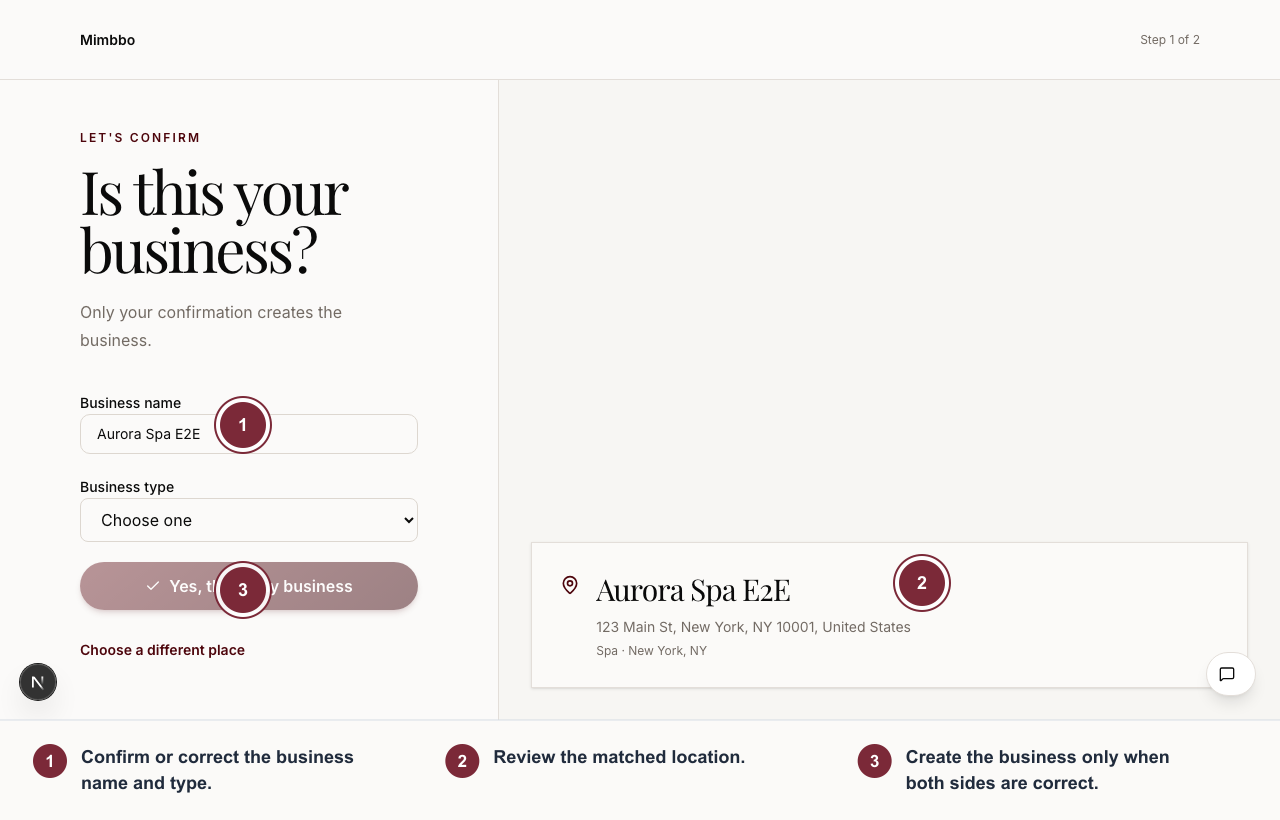
Confirm the matched business only after the name, type, and location describe the workspace you want to create.
- Confirm or correct the business name and type.
- Review the matched location.
- Create the business only when both sides are correct.
Choose a different result if the location is wrong. If the business is not listed, enter the name and business type yourself, then search for and confirm its address or city.
Keep a home address private
Solo providers who do not have a public storefront can choose City only. Mimbbo saves the confirmed city and state without asking for or storing a home street address.
The confirmed city also keeps Calendar on the correct local time. If setup is interrupted, retrying continues from the unfinished part without repeating completed setup.
While we finish setting up your account
You can use your dashboard while account setup continues. A compact Updates strip near the top of Mimbbo shows whether setup is still in progress or needs your attention. Expand it only when you want more detail.
- We’re setting up your account means no action is needed. You can keep working.
- Finish setting up Mimbbo means a connection needs your attention. Review the setup details and try again.
- We couldn’t finish setup means automatic recovery could not continue. Mimbbo notifies support with the business, connection, attempt, and safe technical details needed to investigate. You do not need to send a separate report.
If Mimbbo cannot queue the automatic report, Get help appears so you can send the same setup context manually.
The ready message clears on its own after setup finishes. Mimbbo never includes connection credentials, authorization codes, mailbox content, or access tokens in the automatic support report.
Bring your appointment history
Export appointment history from Vagaro, Fresha, Boulevard, SalonBiz, StyleSeat, or another booking system, then choose the Excel or CSV file in Mimbbo.
Mimbbo checks the export for past appointments, clients, and services first. Before importing, review the filename, appointment count, detected dates, and sample appointments. Choose Replace file if the sample does not look like the history you expected.
Nothing is imported before you choose Import appointment history.
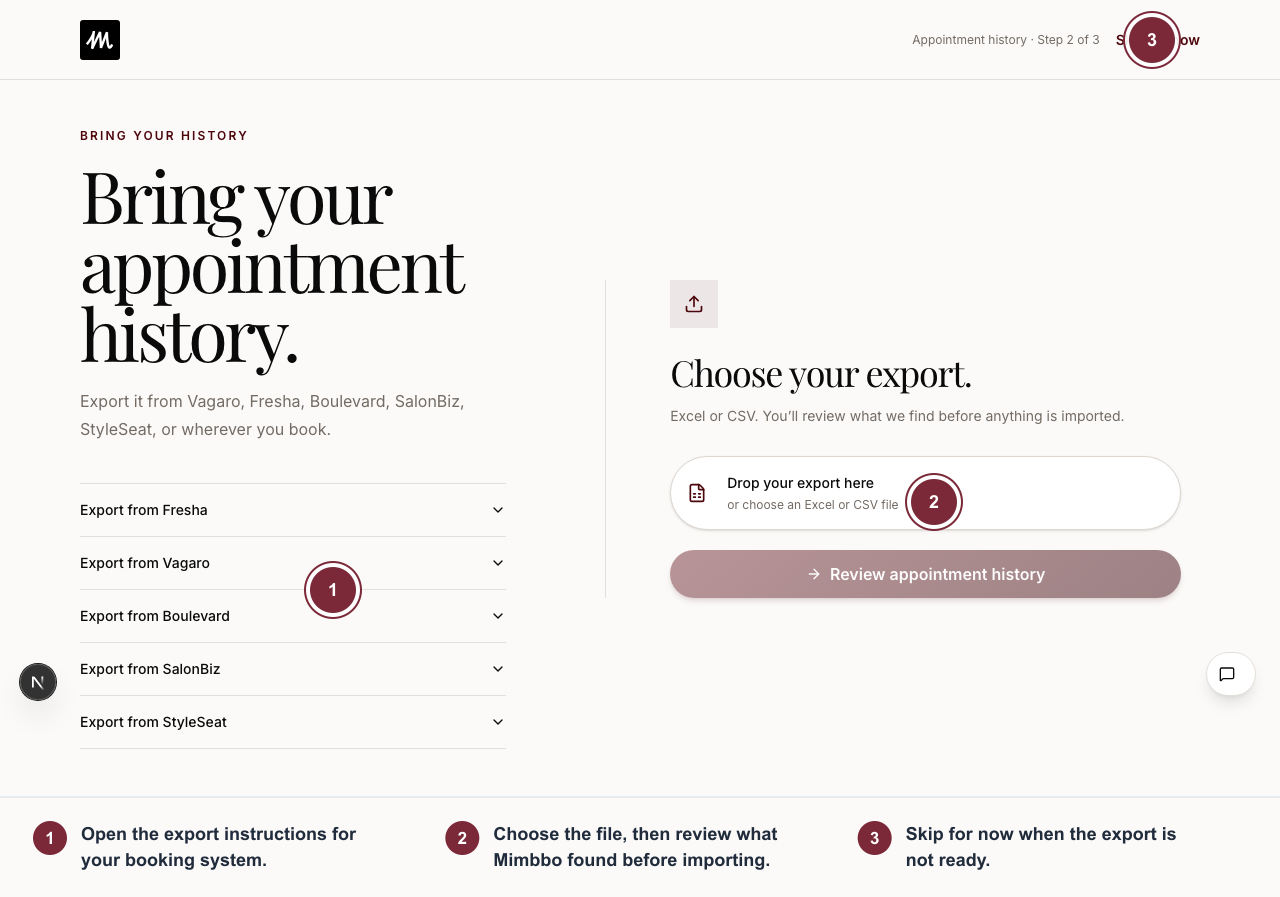
Bring an Excel or CSV export now, or skip and return from Imports when the file is ready.
- Open the export instructions for your booking system.
- Choose the file, then review what Mimbbo found before importing.
- Skip for now when the export is not ready.
After you confirm, the import keeps running while you finish optional setup. You do not have to wait on that page. Updates continues showing progress after you go to the dashboard.
Choose Skip for now if you do not want to add a file yet. Mimbbo still asks where clients should book and which business email to use. You can add appointment history later from Review → Imports.
Choose where clients book
Add the booking page you already use, or choose a Mimbbo booking link.
- For an existing link, Mimbbo checks whether the page can be reached before saving it.
- Some booking pages require sign-in or load only after opening in a browser. When Mimbbo cannot confirm one automatically, open the link and save it if it is correct.
- For a Mimbbo link, review the suggested address, change it if needed, check availability, and confirm it.
Mimbbo does not show a private or local-network link as a valid public booking page.
Choose a business email
Connect Gmail or Outlook, create a Mimbbo Pro address, or ask for help with another provider.
- Returning from Google or Microsoft sign-in restores the same onboarding step.
- Choose the same address you entered. Mimbbo will not attach a different provider account by mistake.
- A Google or Microsoft mailbox can be connected to one Mimbbo business at a time.
- A Mimbbo Pro address can be edited before you confirm it. Mimbbo checks whether the address is available.
- If a Mimbbo Pro address is already connected, continue with that address or choose another option.
- The help request includes your business and onboarding step so support can respond in context. After sending it, choose Continue to finish onboarding.
Booking-link and email setup are optional. Neither one pauses the appointment import. You can skip either item, leave, and return without losing the details you entered.
If Mimbbo cannot read the export:
- Choose the original Excel or CSV export instead of a screenshot or PDF.
- Make sure the export includes completed or past appointments.
- Choose another export and try again. A failed file does not remove the business or require account setup again.
If an import pauses after confirmation:
- Your file, review, and optional setup remain safe. Open the import details, then use the retry action.
- If some rows cannot be read, Mimbbo keeps the appointments it could save. When those appointments support a useful insight, the snapshot is still available and clearly states how many rows could not be read.
- If the saved rows do not support a useful insight, Mimbbo does not invent one. Use the retry action with another export.
When useful insights are ready, a compact snapshot appears above the setup step you are working on. It can show a client pattern, a service pattern, or a booking opportunity supported by the imported appointments. Choose View insights for the details, or continue setup.
If you already left setup, the same snapshot appears in Updates and in the notification bell. Choose it to open the insight details for that import.
The insight page always offers Enable journeys, even when the appointments show that business is healthy. One confirmation enables every available Mimbbo journey so future new, regular, and lapsed clients can receive the right follow-up when they qualify. Mimbbo does not begin outreach until you confirm.
If you choose Go to dashboard while journeys are still off, Mimbbo asks once more. You can enable all journeys or explicitly continue without them.
Your Mimbbo trial
Your trial starts when your business is created. You can import clients and work without adding a card. Open Billing to see when the trial ends. Mimbbo sets the default duration and may set a different duration for your business. After it ends, a paid subscription or free-access grant from Mimbbo keeps full access. Without one, you can still view your saved work. Subscribe to make changes again; billing begins immediately when checkout is complete.