Monitor automatic customer journeys
Journeys show how Mimbbo groups eligible clients and what outreach it can run. Analysis can continue while outreach is off.
Explore your automatic journeys
- Open Journeys under Send messages.
- Search by journey name when you need a specific type of follow-up.
- Use the status filter to focus on journeys that are on, off, or paused.
- Open a journey to see its trigger, planned outreach, and wait windows.
- Select Customers on the journey detail to see the people currently in that journey.
When clients qualify, the list and journey detail can also show estimated monthly and annual impact. These totals add together the estimates for clients currently in that journey.
Every built-in Mimbbo journey appears in this list, even when outreach is off and no clients currently qualify.
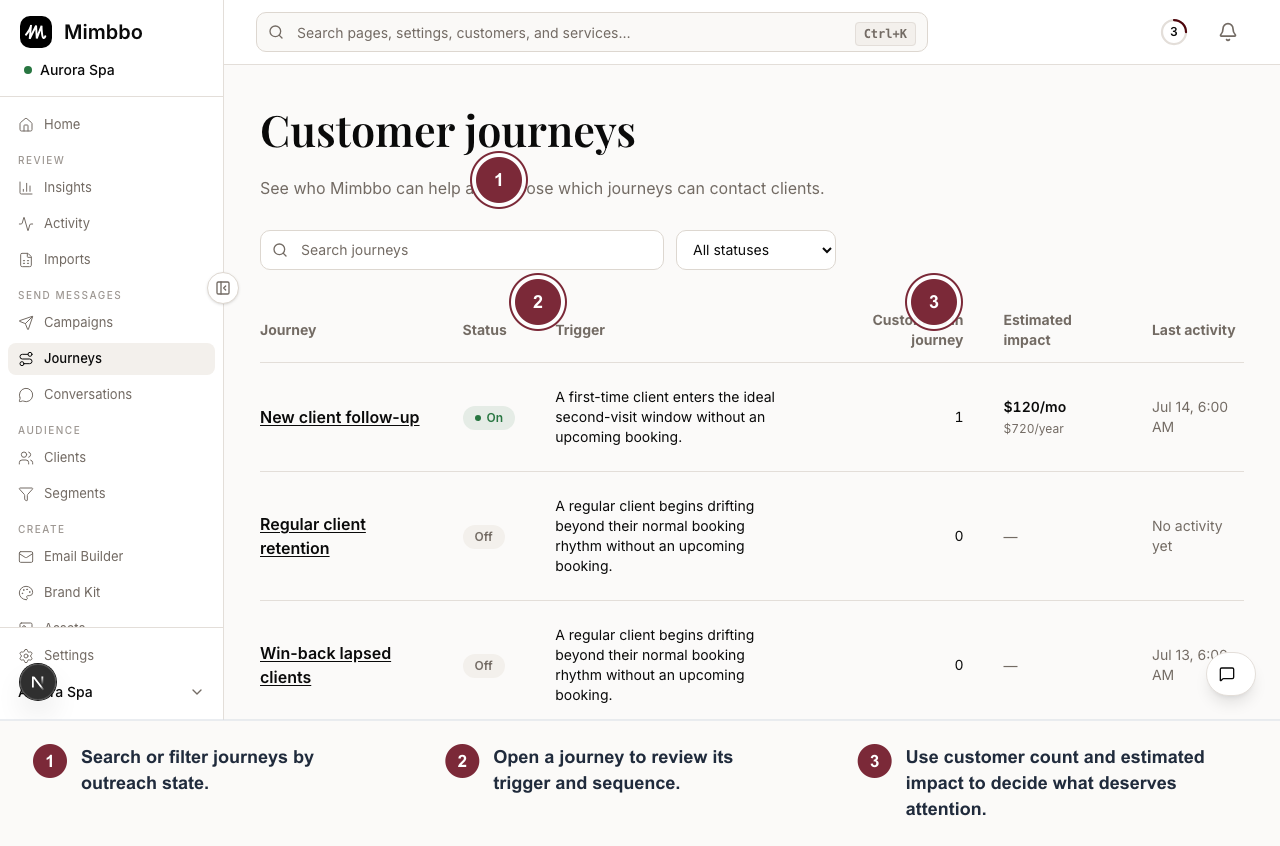
The journey list shows why each journey starts, whether outreach is on, and where customer activity exists.
- Search or filter journeys by outreach state.
- Open a journey to review its trigger and sequence.
- Use customer count and estimated impact to decide what deserves attention.
- On means Mimbbo may contact eligible clients for that journey.
- Off means Mimbbo can still analyze and group eligible clients, but it cannot contact them.
- Paused means outreach was stopped after the journey had been enabled.
Enable or pause outreach
After appointment-history setup, Enable journeys turns on every available built-in journey with one confirmation. You can also open an individual journey and choose Enable journey later. Mimbbo explains that outreach will begin and asks you to confirm. No journey outreach starts before that confirmation.
To stop new outreach for the full journey, open the journey actions menu and choose Pause journey. Analysis remains available, and you can enable the journey again later.
Understand a journey timeline
The timeline begins with the client condition that starts the journey. The steps that follow explain:
- The outreach Mimbbo plans for each step.
- The purpose of each message Mimbbo plans to send.
- How long Mimbbo waits before the next follow-up.
- When the journey reaches its final response window.
The timeline summarizes message intent. The final wording can be personalized for the client and their history.
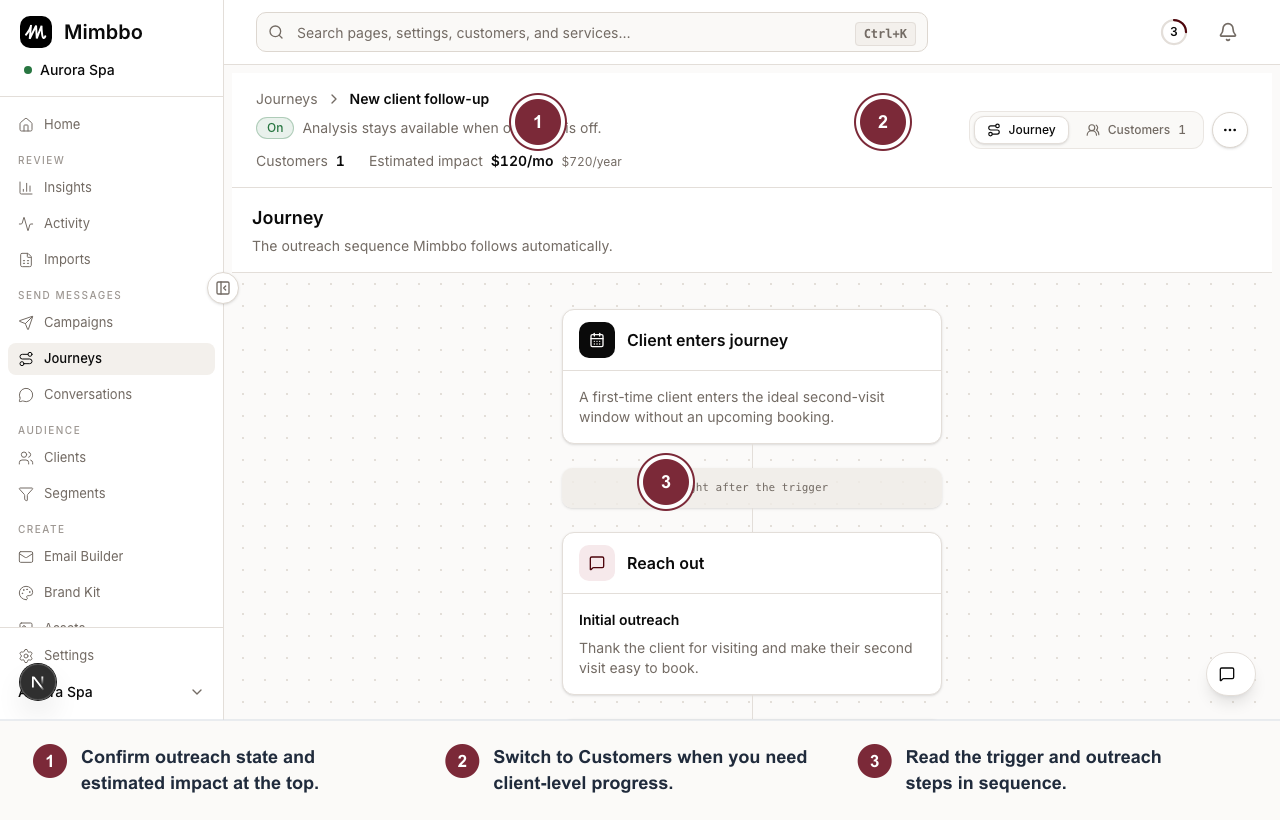
Journey detail separates the automatic sequence from the clients currently moving through it.
- Confirm outreach state and estimated impact at the top.
- Switch to Customers when you need client-level progress.
- Read the trigger and outreach steps in sequence.
Check where clients are in a journey
Select Customers on the journey detail to switch from the journey timeline to the active customer list. Each client includes:
- Their current stage, such as preparing outreach, waiting after a message, paused, or needing provider follow-up.
- How many outreach attempts have been sent.
- The next planned step and its expected time.
- Their individual estimated monthly and annual impact.
- Recent messages, including the channel and send time.
Journey email follows the outreach hours in Settings > Messaging. When the next step falls outside that window, the client row shows Waiting for outreach hours and the next allowed time. Mimbbo checks the current journey eligibility, customer preference, business timezone, and outreach hours again before continuing.
Estimated impact is a forward-looking estimate based on the customer and journey opportunity. It is not revenue that has already been earned or a guarantee that the customer will book.
Select a sent message to open the retained copy from Mimbbo Messaging. Emails show the rendered subject and message body after client details and other template variables were applied.
If Mimbbo no longer has the retained message content, the message detail says that the actual message is unavailable. A journey summary may still appear for context, but it is labeled separately and is not presented as the wording that was sent.
When no clients currently qualify, the customer list is empty. The journey timeline remains available so you can understand what will happen when a customer becomes eligible and outreach is on.
Clients leave the active journey list after the journey is completed or closed. Their prior Mimbbo activity remains available from the client profile.
Open a journey from a client profile
- Open Clients and select the client.
- Find Current journey in Intelligence.
- Open the journey name.
Mimbbo opens the journey detail and brings that client into view so you can compare their position with the full sequence.
Pause outreach for one client
Use the automated campaigns control on the client profile when future journey outreach should stop for that client.
- Pausing affects only that client, not everyone in the journey.
- Previously sent messages remain visible.
- Turning automation back on allows Mimbbo to resume eligible follow-up.
This client-level control is separate from Pause journey, which stops new outreach for everyone in that journey.