Set up services
Services are the core choices clients see when they book. Keep each service clear enough that clients can choose without extra back-and-forth.
Before you start
- Decide on the service name clients should see.
- Write a short description when clients need more context to choose the service.
- Confirm the duration you actually need to deliver the appointment.
- Confirm the default price you want Mimbbo to show.
- Gather images you want to attach, if you plan to use them.
- Decide whether the service should be bookable right now.
Create a new service
- Open Services.
- Select Add service.
- Enter the service name.
- Add an optional description. This appears with the service on your booking page.
- Set the duration.
- Set the default price.
- Add images if they help the client understand the service.
- Choose whether clients can book it.
- Save the service.
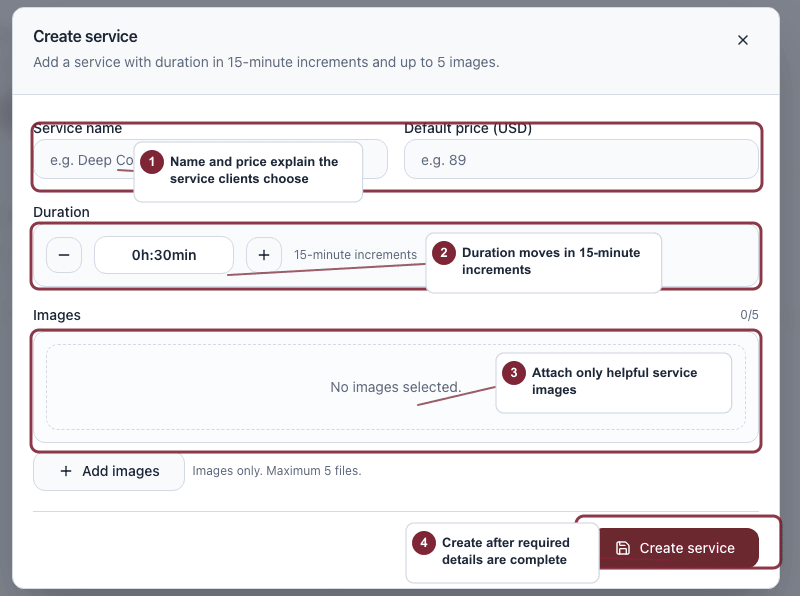
The service form keeps the details that affect booking choice in one place.
- Name, description, and price should help clients understand what they are choosing.
- Duration controls the appointment length and should match how long the work takes.
- Images are optional; add them only when they help clients understand the service.
- Create the service after required fields are complete.
Edit an existing service
- Open Services.
- Search if you need to find the service quickly.
- Select the service from the list.
- Update the name, description, duration, price, images, or bookable status.
- Save the changes.
Use bookable status
- Keep a service bookable when clients should be able to choose it from your booking page.
- Mark a service not bookable when you want to keep it in Mimbbo but stop clients from booking it.
- Use not bookable for seasonal services, paused services, or services that require consultation first.
Understand duration and slot rules
Service duration controls how long the appointment lasts. Calendar slot interval controls which start times clients can choose. Clients can continue booking even when the service duration does not match the slot interval exactly.
What can block save
- Service name is required.
- Duration must be a whole number of minutes.
- Duration must stay between 15 and 1440 minutes.
- Price must be zero or higher.
- Mimbbo accepts images only, with a maximum of 5 per service.
Mimbbo lets you save a service without an image. If your business uses Mimbbo’s booking link, Service photos remains incomplete until every bookable service has at least one image.
Delete carefully
- Manual services can be deleted when you no longer need them.
- Learned services can still be edited, but Mimbbo does not let you delete them.
Last updated on